Calendar
The Calendar is where your training plan meets reality. It's the central hub for seeing what's scheduled, what's done, and what's coming next. I've gotten questions about specific calendar features, so this guide covers everything the Calendar page can do — from basic navigation to bulk operations and cross-platform sync.
1. Calendar Views
PlanWatts gives you two ways to look at your schedule:
Monthly View
The default view. You see the entire month laid out with workout cards on each day. It's great for getting a big-picture sense of your training load, spotting rest days, and seeing how your phases distribute across the month.
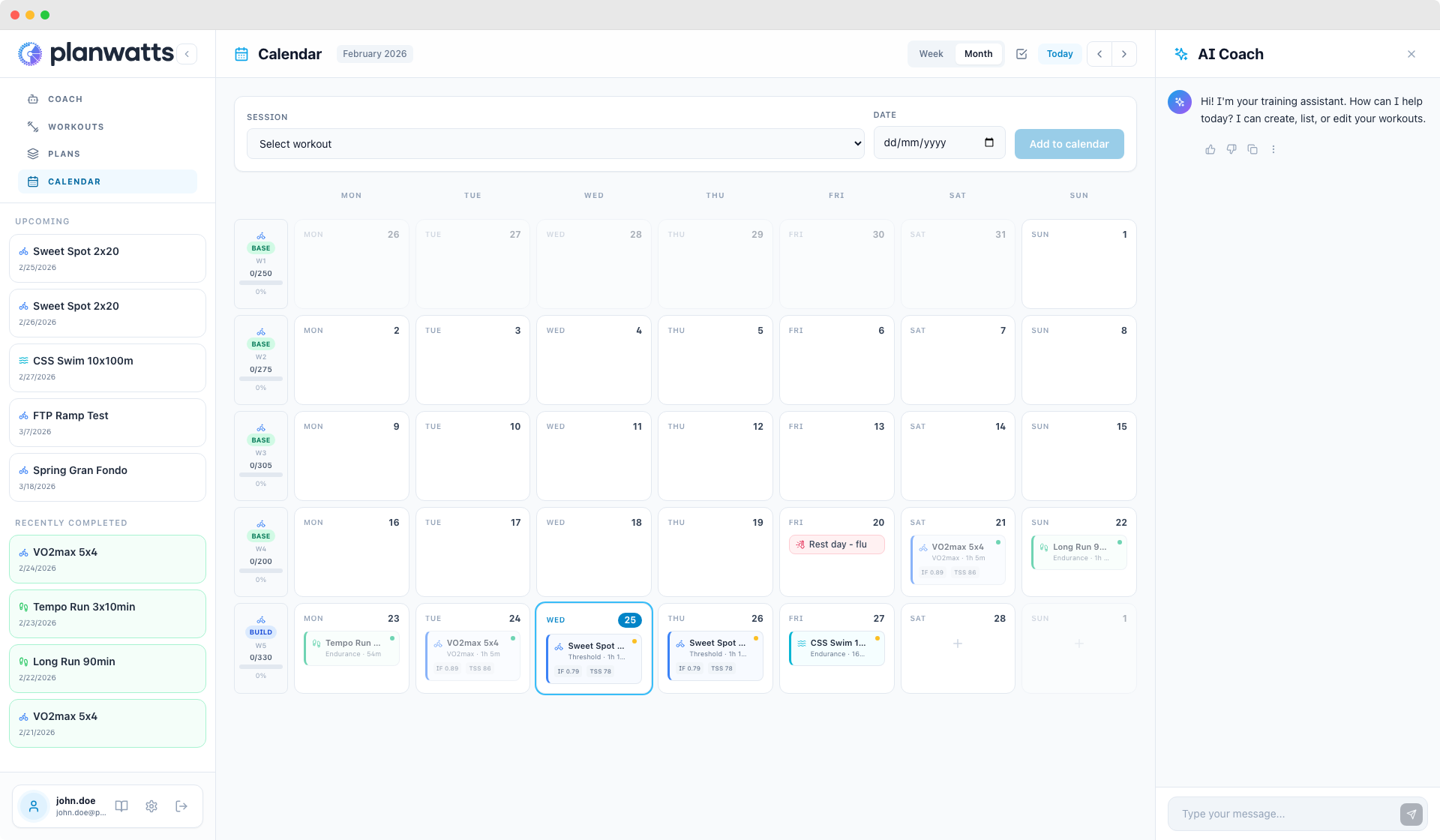
Week View
Switch to the week view for a more detailed look at individual days. Each day gets more vertical space, so you can see full workout details — names, durations, metrics — without clicking into anything.
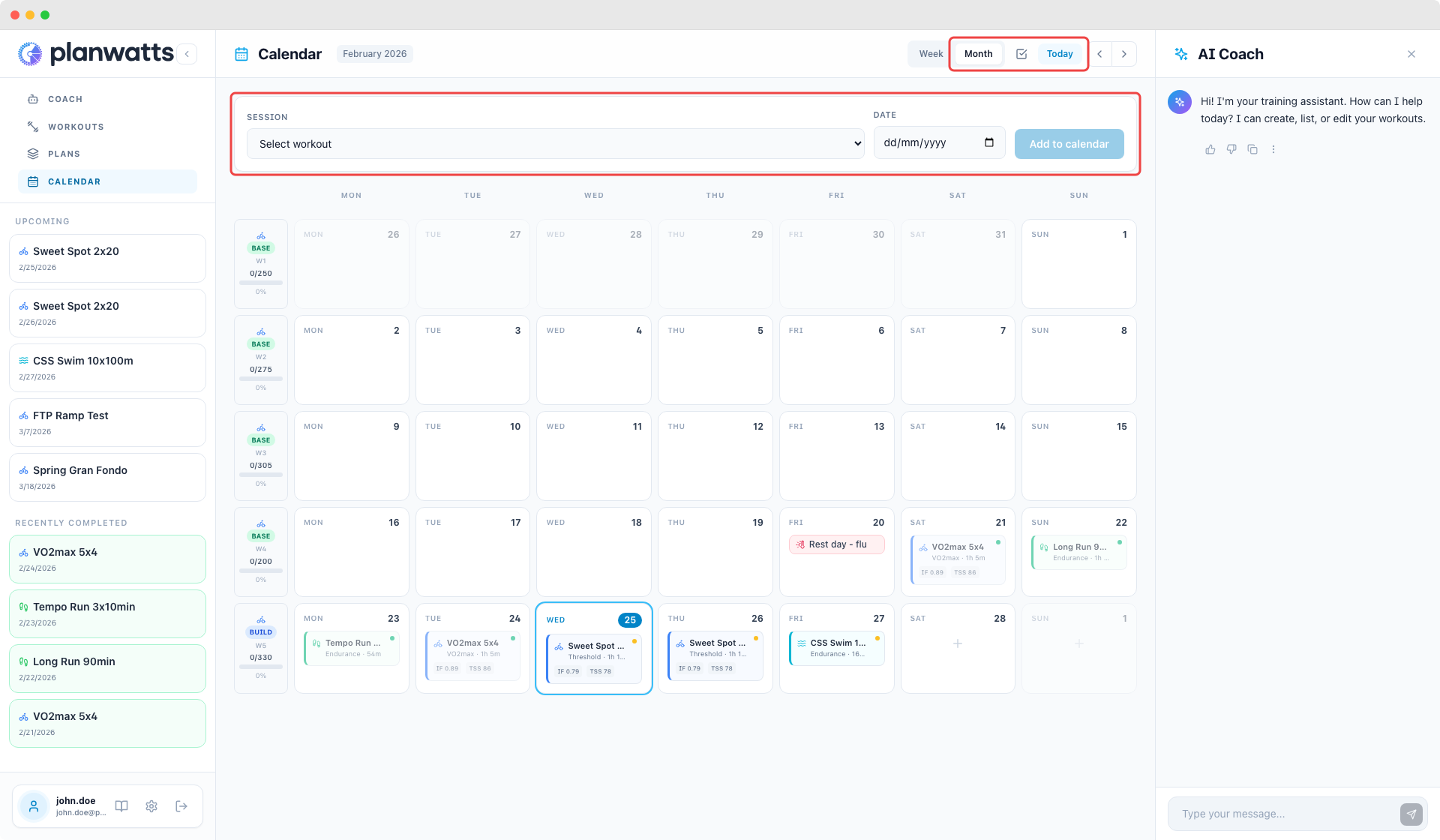
Navigation
- Arrow buttons to jump between weeks or months (depending on active view)
- Today button to snap back to the current date
- Today's date is always highlighted so you never lose your place
2. Workout Cards
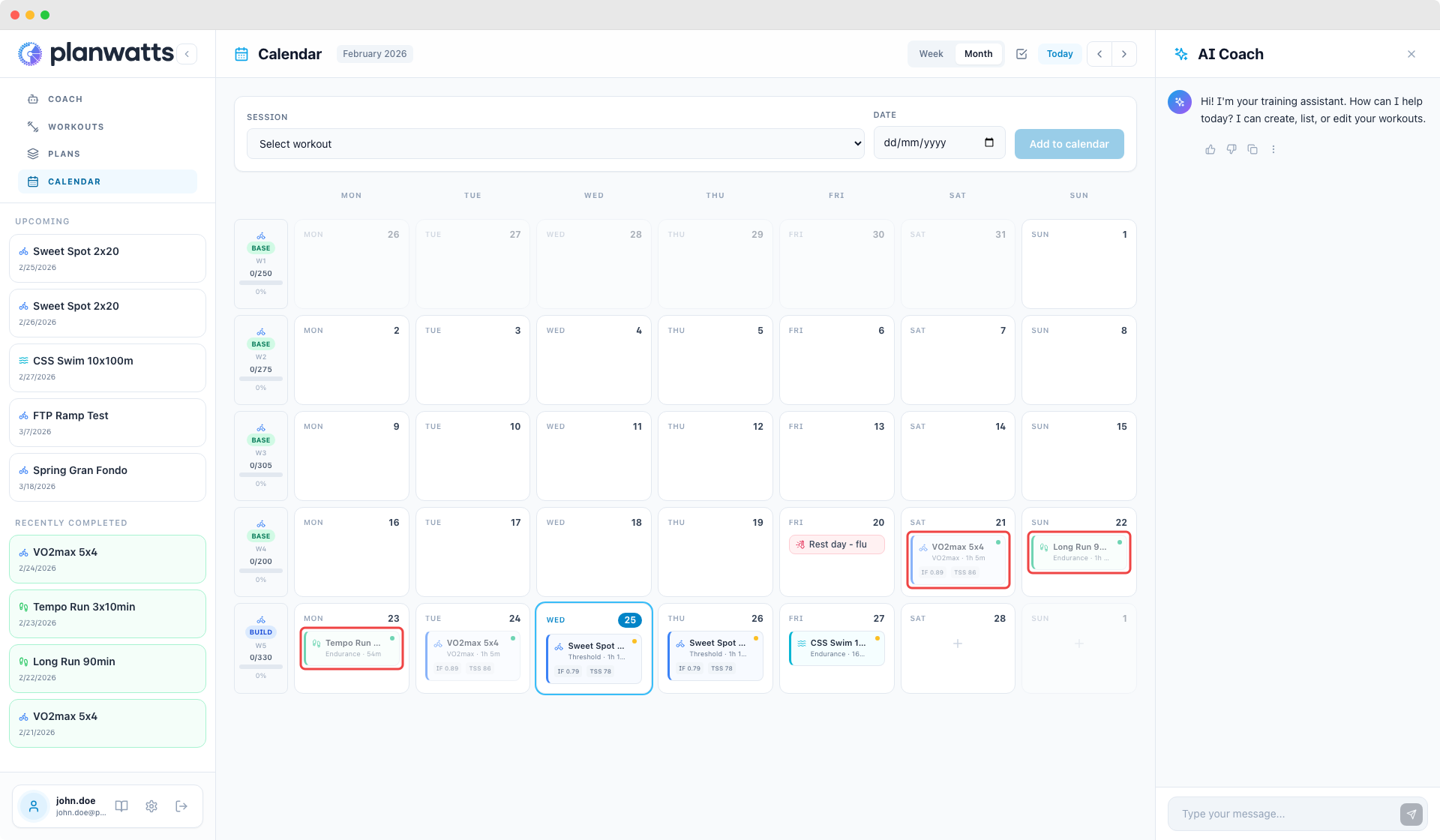
Every scheduled workout appears as a card on its calendar day. There's a lot of information packed into these small cards.
Color Coding by Sport
Each sport has its own color:
- Blue — Cycling
- Green — Running
- Cyan — Swimming
You can tell at a glance what type of training is scheduled for any given day without reading a single word.
What Each Card Shows
- Sport icon — small icon matching the sport type
- Workout name/type — e.g., "Sweet Spot 2x20", "Easy Run", "Drill Set"
- Duration — planned workout duration
- IF/TSS badges — intensity factor and training stress score when available
- Sync status dot — indicates whether the workout has been synced to connected platforms or is still pending
- Provider badge — shows where the event came from (Strava, Intervals.icu)
Completed vs Planned
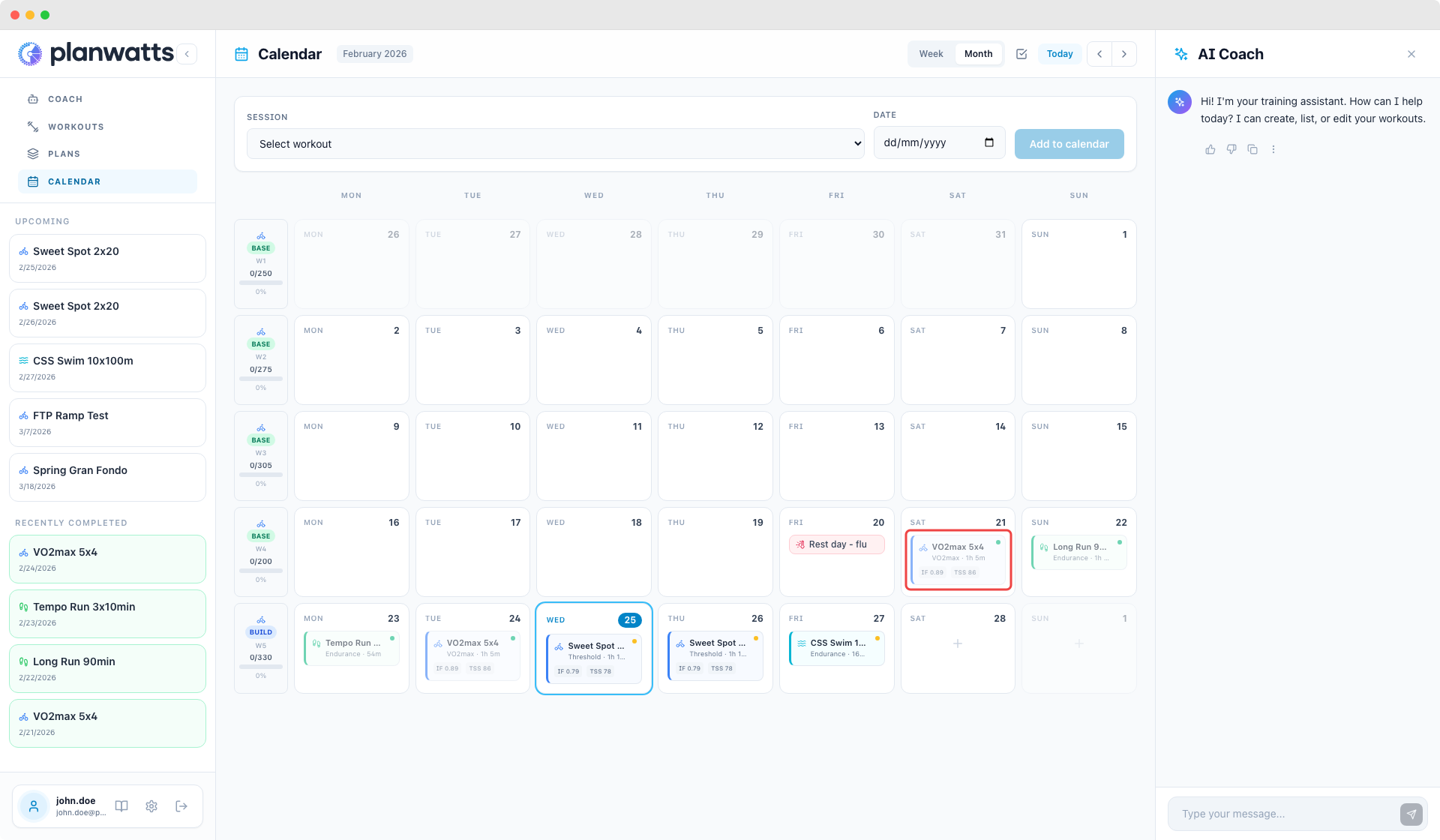
- Completed activities show with a completion indicator — you can tell immediately what's done and what's still ahead
- Past events are dimmed (lower opacity) so your eye naturally focuses on current and upcoming workouts
3. Scheduling Workouts
Creating New Events
Click any empty future day to open the EventModal and schedule a new workout. Empty future days show a small plus icon on hover — click it and you're in.
You can also schedule events by applying a training plan (covered in the training plans guide), which fills your calendar automatically.
For more on creating workouts, see the Workouts guide.
Sport Filter Pills
When creating a new event, sport filter pills (Cycling / Running / Swimming) let you quickly narrow down which workout to assign.
Drag and Drop
On desktop, you can drag workout cards between days to reschedule. Just grab a card and drop it on the target day. The schedule updates immediately, and if you're connected to Intervals.icu, the date change syncs there too.
A few rules:
- Past days are locked — you can't create new events on days that have already passed
- Completed events don't move — if an activity is already done, dragging is disabled
- Past events don't move — events on past dates are locked in place
- Mobile: drag-and-drop is disabled on phones and tablets to avoid conflicts with scroll gestures. Use the date picker in the EventModal to reschedule on mobile instead.
See also
- Calendar Events & Details — event modal, event types, weekly summary, and sidebar
- Calendar Sync & Operations — cross-platform sync and bulk operations