Calendar Events & Details
1. The EventModal
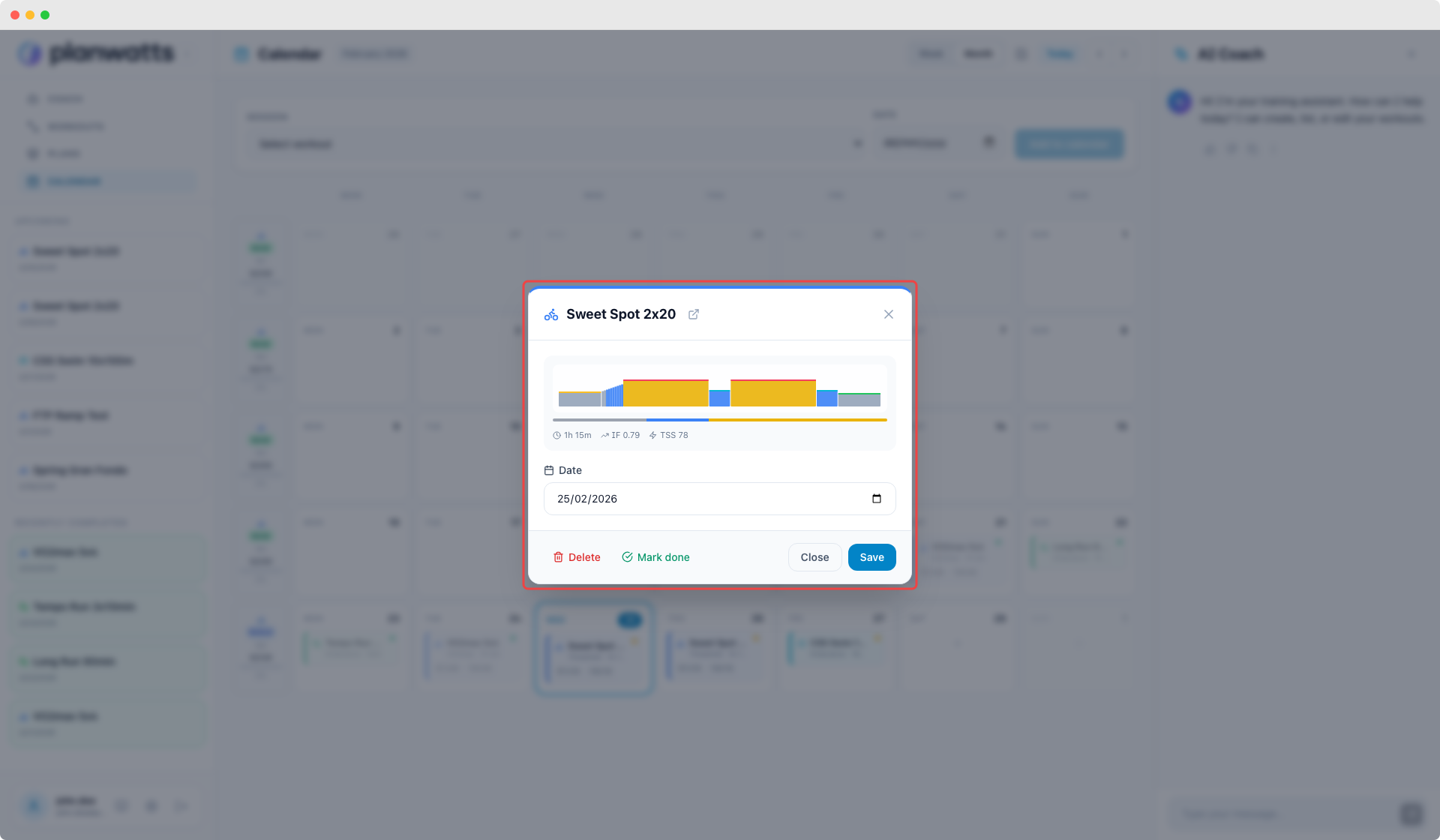
Click any workout card to open its detail modal. This is where you manage individual events — and the modal adapts based on whether the event is planned or completed.
For Planned Workouts
- Sport-colored header — the top bar matches the sport color (blue for cycling, green for running, etc.) with the sport icon and workout name
- Workout preview — mini interval chart showing the workout structure, zone distribution bar, and IF/TSS metrics
- Date picker — change the scheduled date right from the modal. The reschedule syncs to Intervals.icu automatically
- Open in Editor link — jump to the full workout editor to modify steps, intervals, or description
For Completed Activities
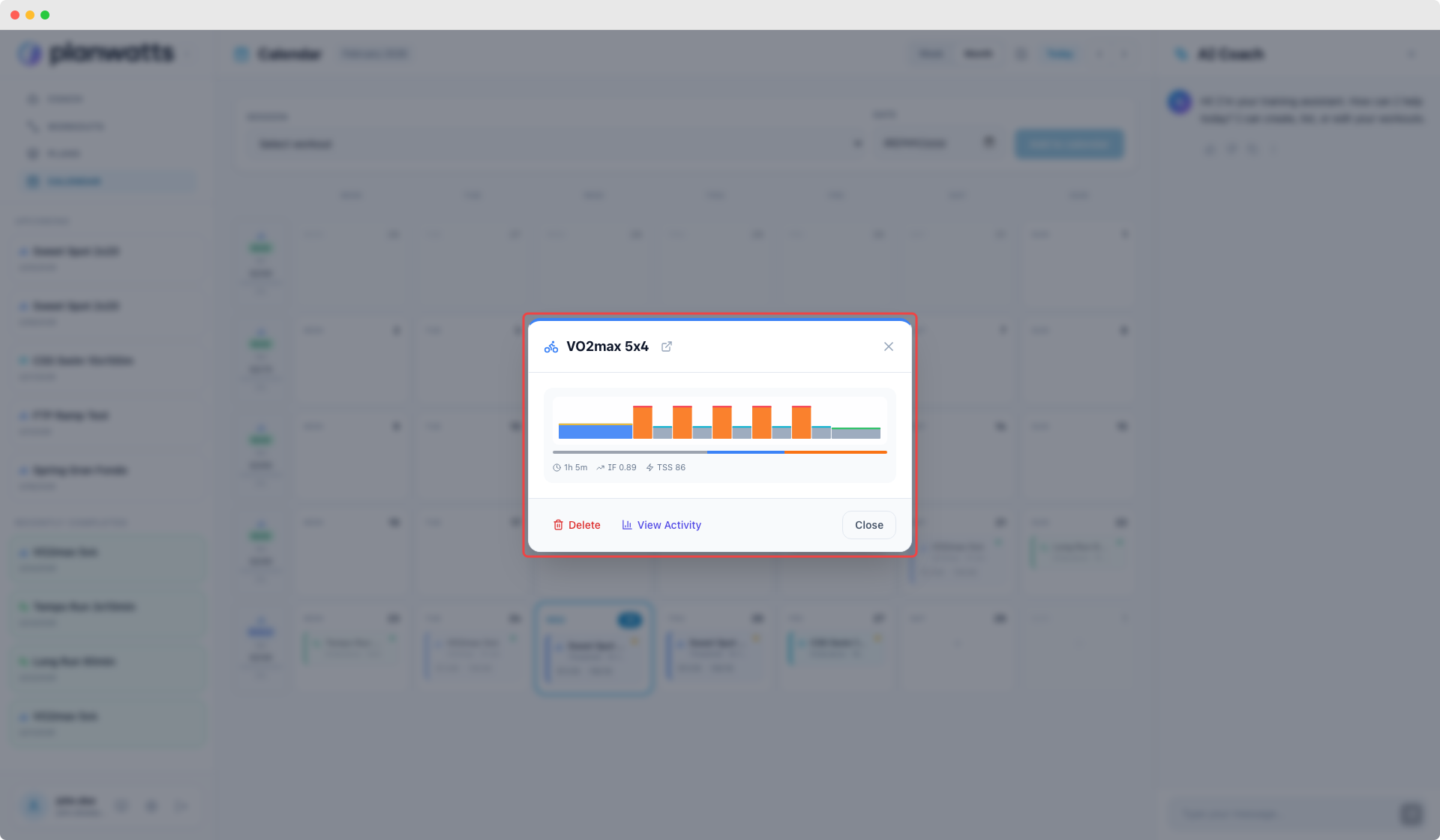
When you open a completed event, the modal shows richer data:
- Performance metrics — duration, distance, TSS, average/max power, average/max heart rate, elevation gain
- Mini power/HR chart — a small visualization of how your power and heart rate played out during the activity
- View Activity button — opens the full Activity Detail page with deeper analysis
- Push to Strava button — if Strava is connected, rename your Strava activity with the planned workout name and description (one click)
2. Beyond Workouts — Event Types
The calendar isn't limited to workouts. You can also add:
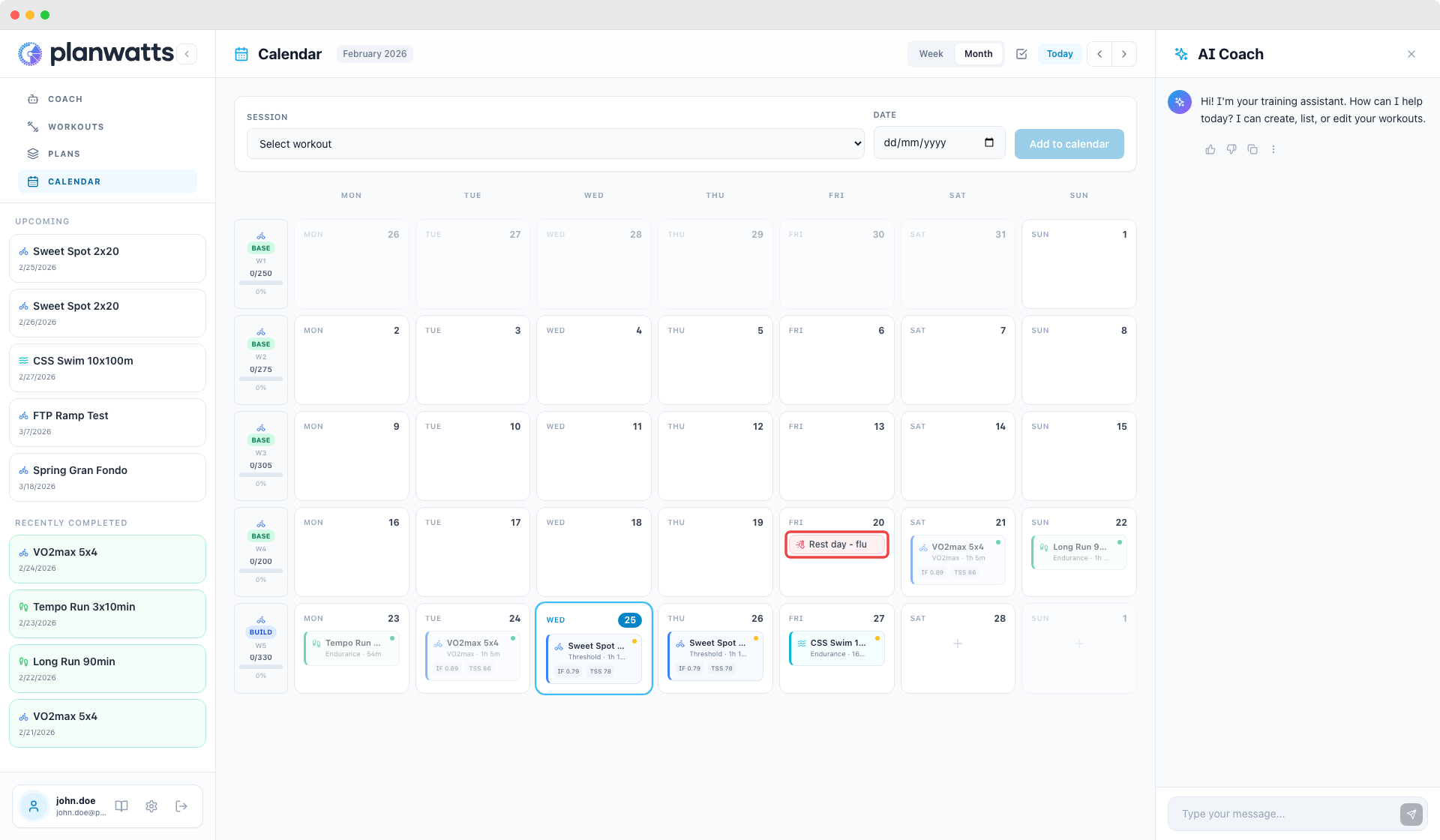
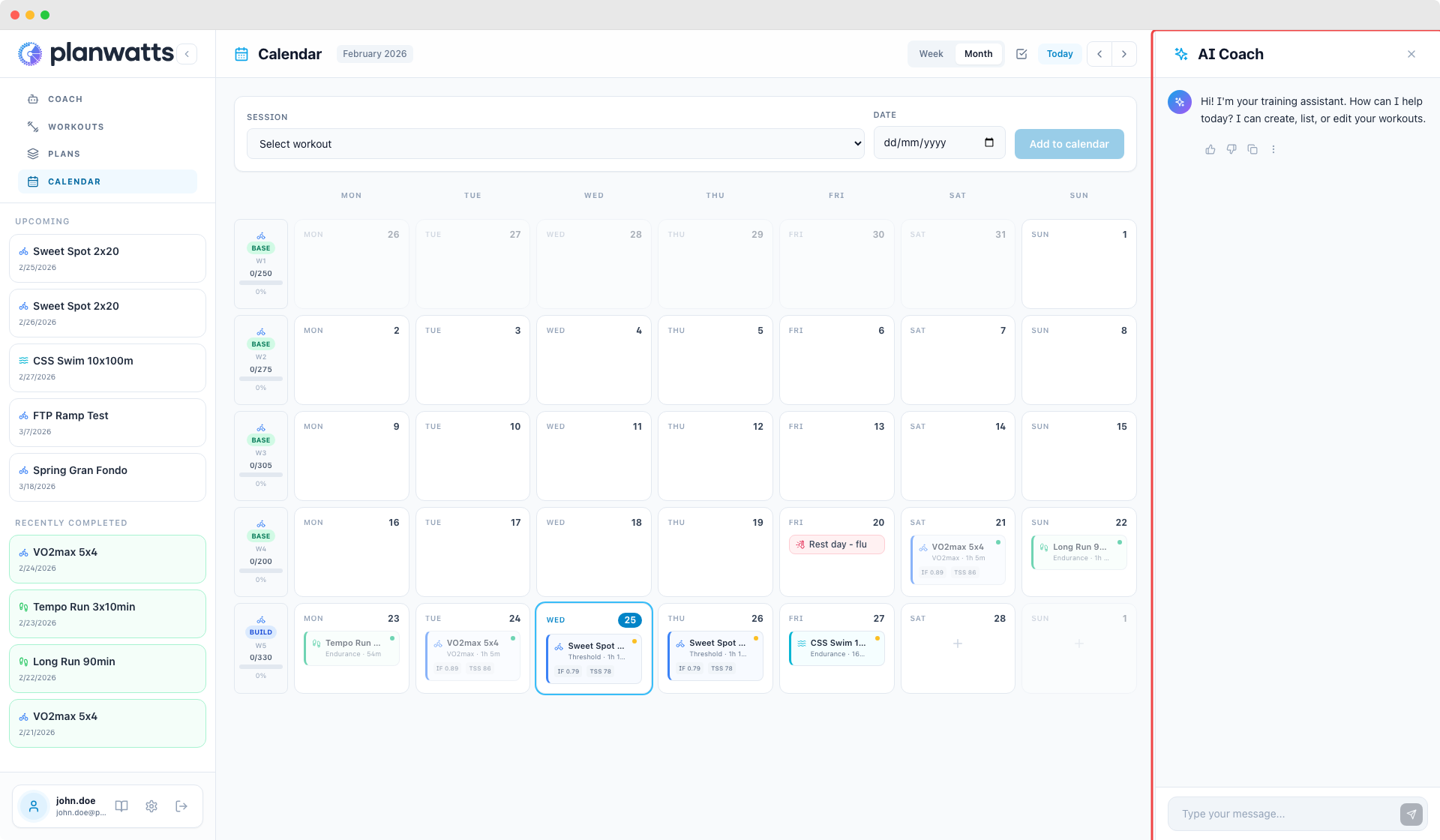
- Race events — with A/B/C priority levels. A-races are your main goal events, B-races are important but secondary, C-races are training races or low-priority events. Each priority level gets its own color so you can visually distinguish goal races from tune-up races at a glance
- Notes — free-text annotations on any day
- Holiday / Sick / Injured markers — flag days where training isn't happening and why
These event types help you keep context right on the calendar. When you look back at a week where TSS dropped unexpectedly, a "Sick" marker explains it instantly.
3. Weekly Summary (Left Column)
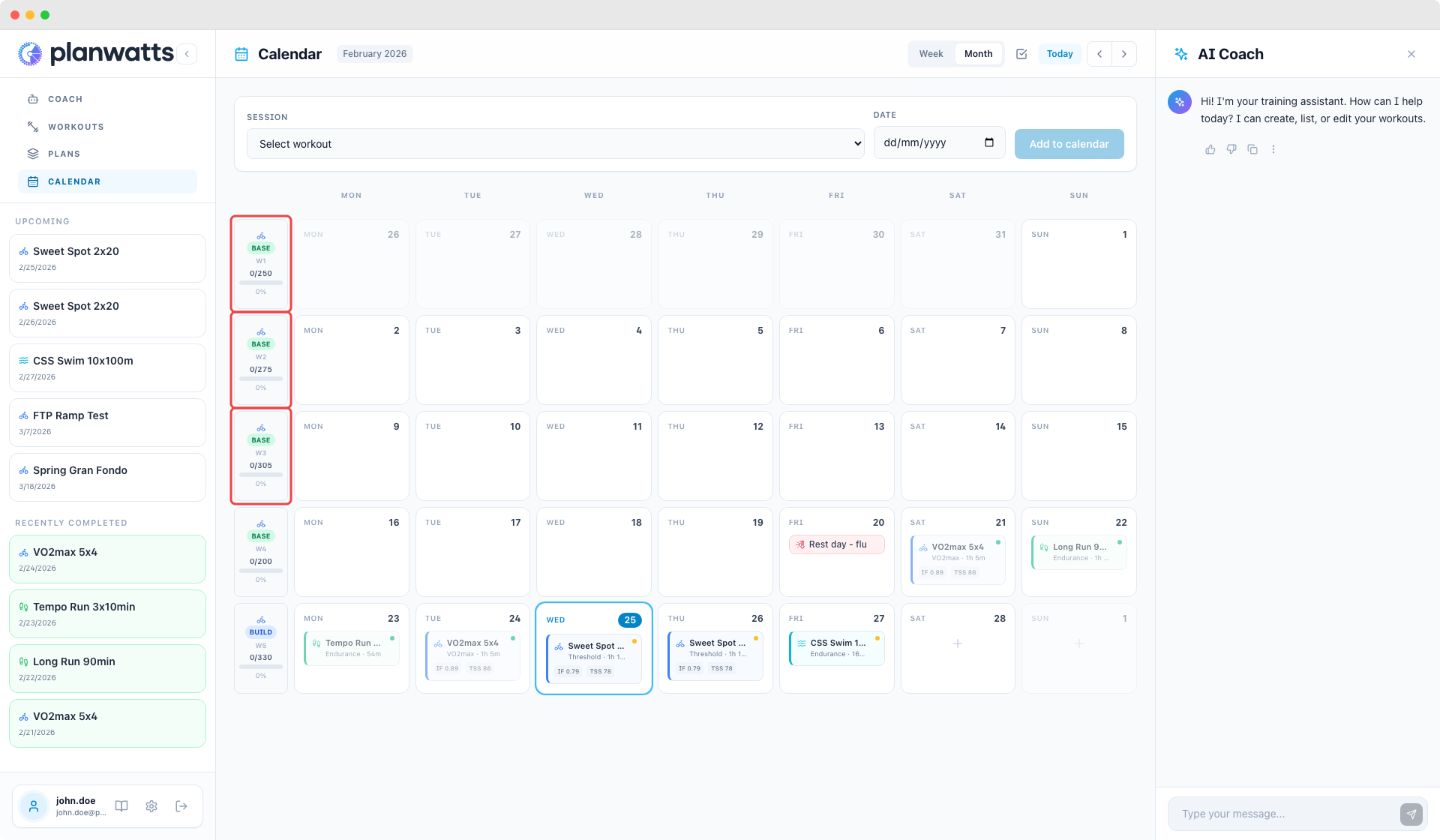
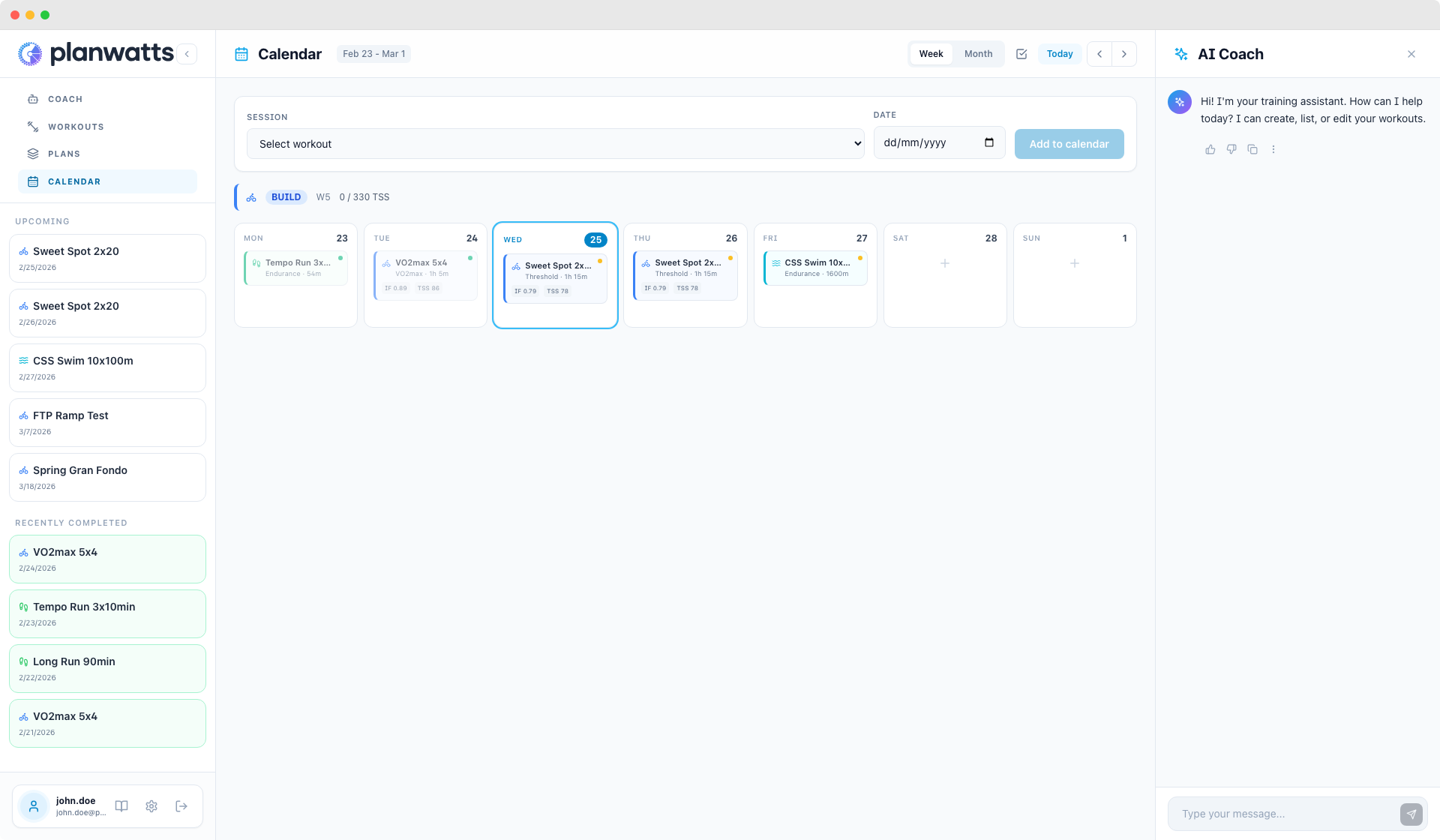
Every week row has a summary cell in the left column. What it shows depends on whether you have an active training plan.
With a Plan Applied
- Phase badge — colored label showing your current training phase: Green = Base, Blue = Build, Orange = Peak, Purple = Recovery
- Week number — W1, W2, W3... within your plan
- TSS target vs actual — e.g., "285/461" with a progress bar filling up as you complete workouts
- Completion percentage — how close you are to hitting your weekly goal
- The left border of the week row is colored to match the phase
As you train through the week, the progress bar updates in real time. You always know if you're on track, behind, or ahead.
Without a Plan
Even without an applied plan, the weekly summary still shows your total completed TSS for the week. It's a simpler view but still useful for tracking weekly load.
4. Sidebar Context
The calendar page includes a sidebar that shows contextual information:
- Upcoming scheduled workouts — what's coming next, with plan affiliation if the workout comes from an applied plan
- Recently completed activities — your latest training sessions with source badges (Strava, Intervals.icu)
This sidebar keeps you oriented without scrolling through the calendar — you can see at a glance what's next and what you just did.
See also
- Calendar — views, workout cards, and scheduling
- Calendar Sync & Operations — cross-platform sync and bulk operations