Training Plans
This guide covers how the AI training plan system works — from creating a periodized plan to applying it to your calendar, generating workouts, and tracking weekly targets.
1. Creating a Training Plan with AI
This is where PlanWatts really differentiates. You can build a full periodized training plan from a single sentence.
Ask the Coach
Open the Coach and describe what you need:
"I want to prepare for a 160km gran fondo on June 15th. I can train 4 days a week, about 8-10 hours total."
The Coach gathers your requirements (sport, objective, duration, available days, event date) and builds a structured plan.
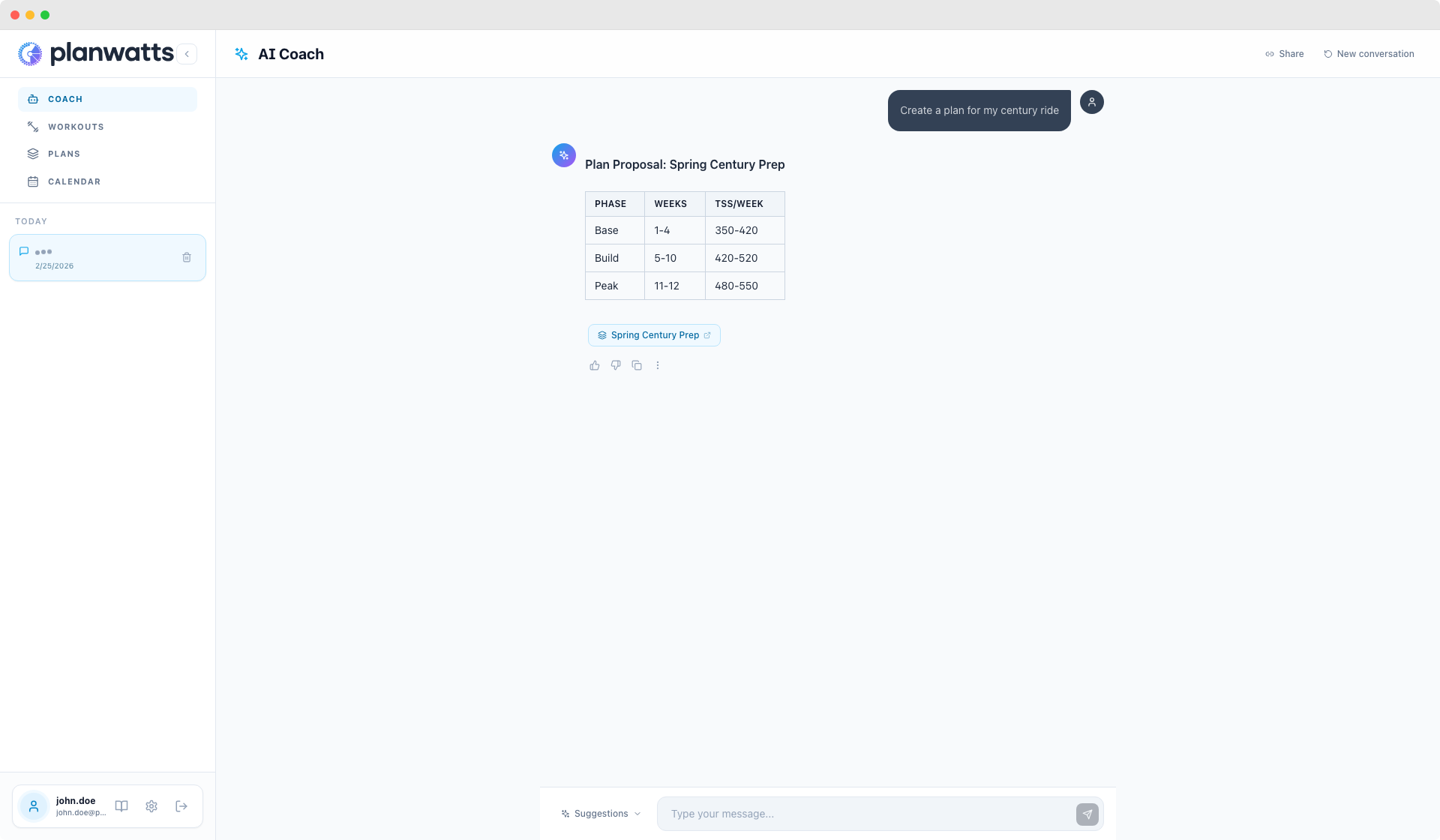
Plan Structure with AI Rationale
PlanWatts generates a complete plan structure:
- Phases — Base, Build, Peak, Taper, with duration and objective for each
- Recovery weeks — automatically inserted every 3-4 weeks (based on training science: Issurin 2010, Bompa & Haff 2009)
- Weekly TSS targets — progressive load with ~5% weekly increases, plateau phases, and recovery reductions
- AI rationale — the Coach explains WHY it chose those parameters
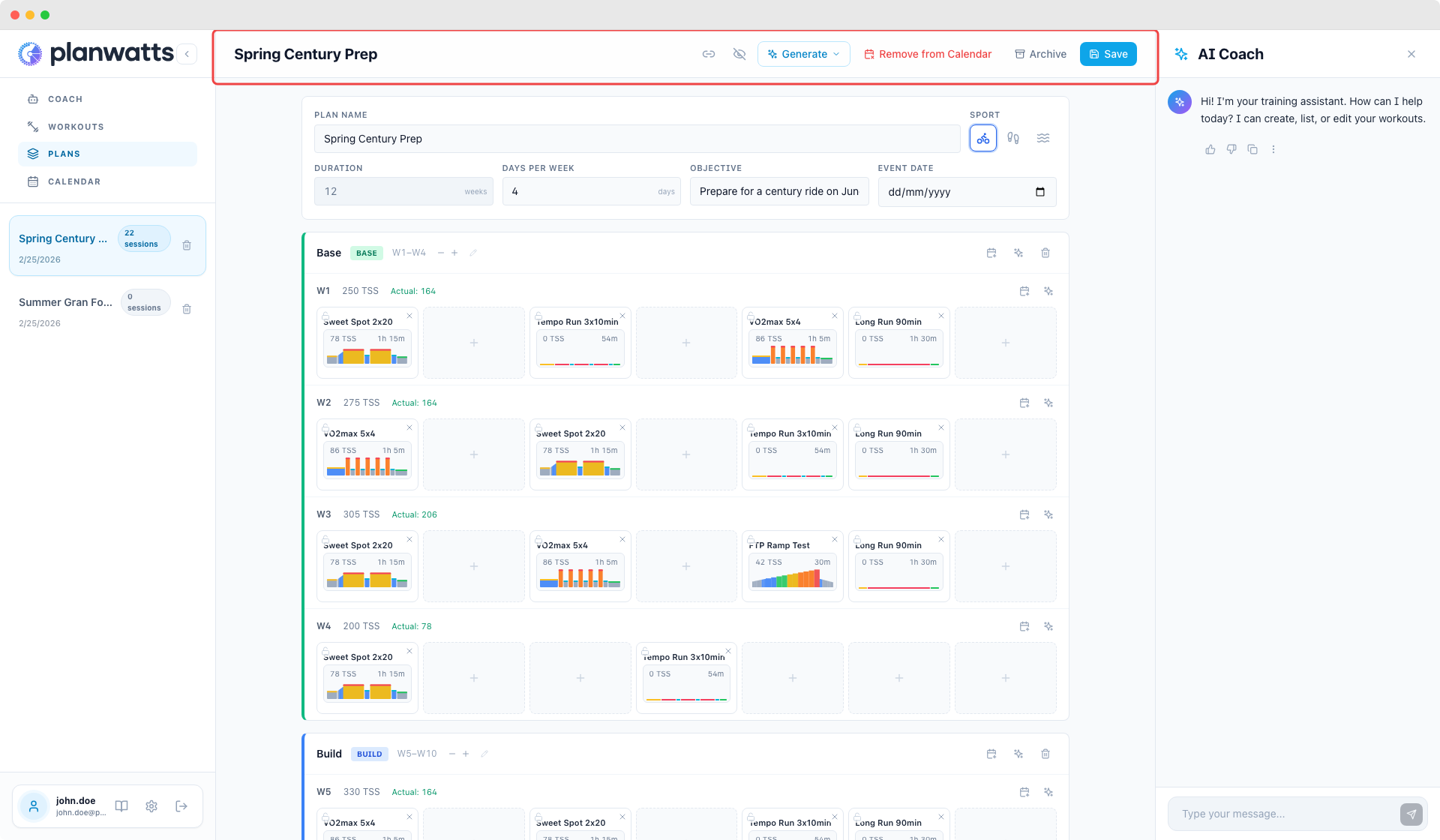
The plan editor header shows your plan's metadata — name, sport, event date, phases, and weekly targets at a glance.
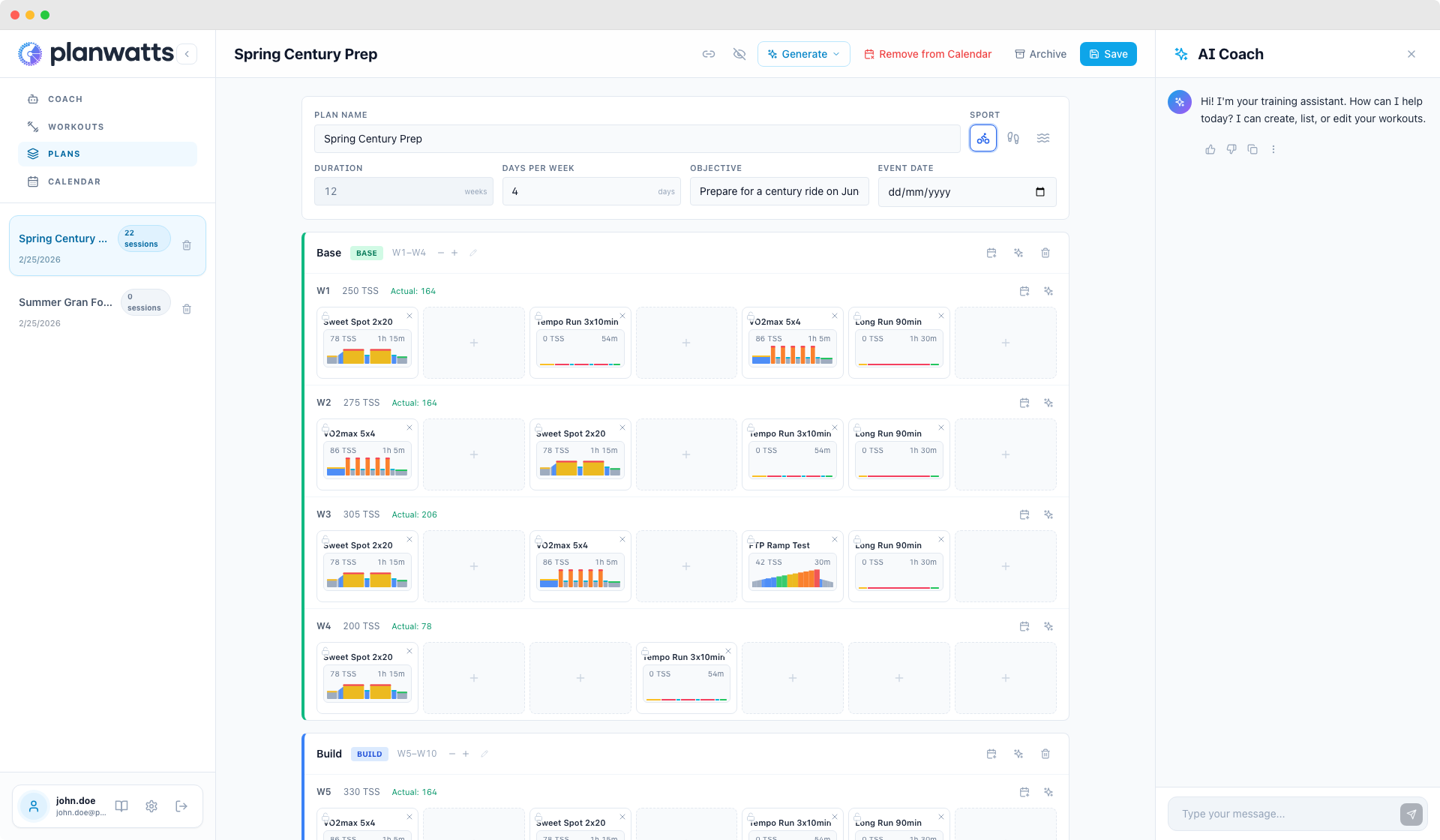
Manual Plans Also Work
You don't have to use the AI. You can create a plan manually from the Plans page, add phases, assign workouts to cells, and manage everything yourself.
2. Applying a Plan to Your Calendar
Once your plan structure is ready (phases + weekly targets), you apply it to your calendar.
The Apply Flow
From the plan card or plan editor, click Apply to Calendar. A popover lets you:
- Pick a start date — select the Monday your plan begins
- Choose training days — which weekdays you train (Mon, Tue, Thu, Sat, etc.)
- Review — PlanWatts shows how many sessions will be created
Hit Apply and your calendar fills up with planned workouts.
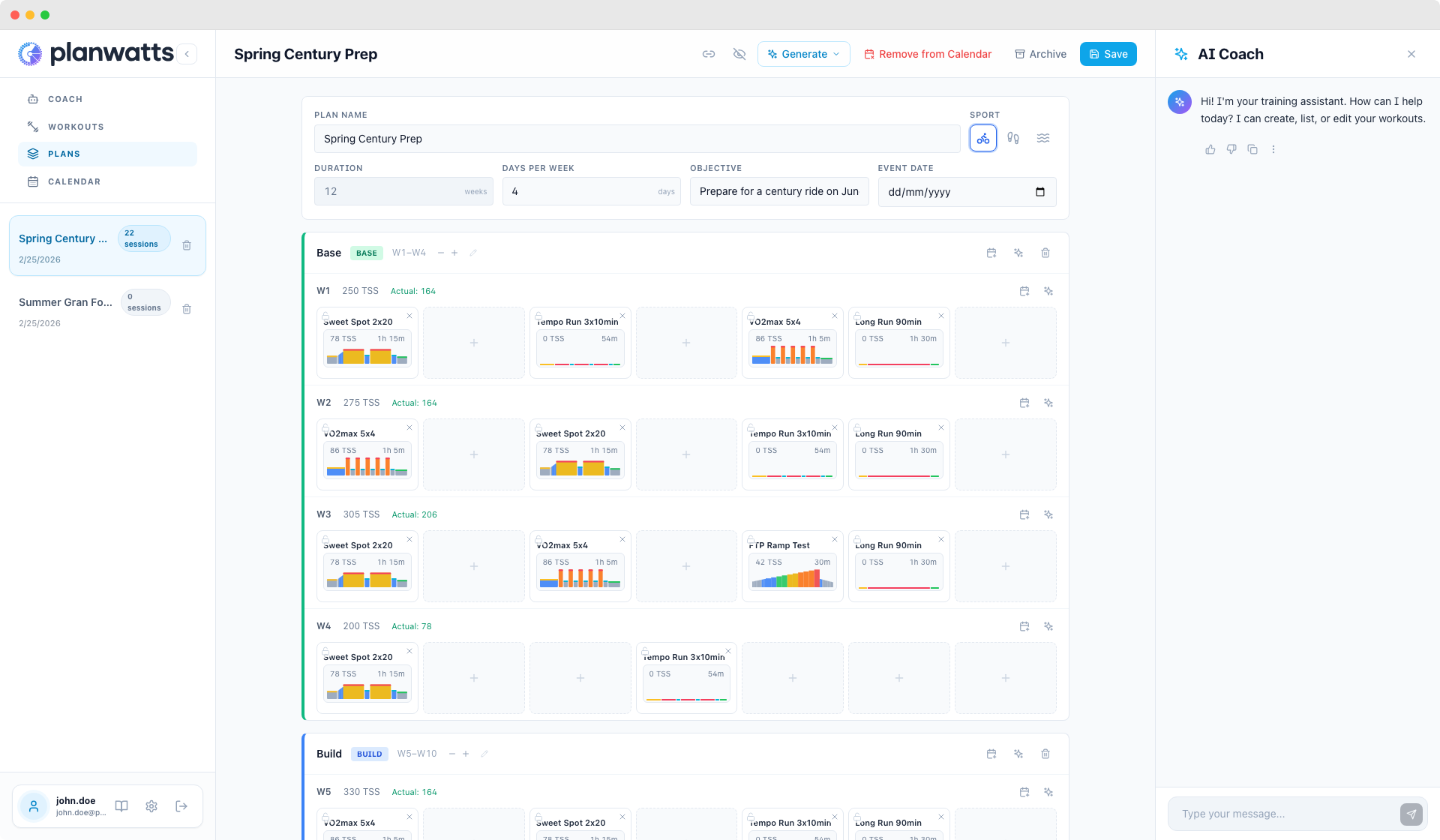
What Happens Under the Hood
- Each plan entry becomes a Schedule on your calendar
- If Intervals.icu is connected, every workout is synced there immediately
- If Strava or Garmin are connected, workouts push to those platforms too
3. Weekly Targets on the Calendar
This is the part that connects PlanWatts plans with the Intervals.icu ATP concept.
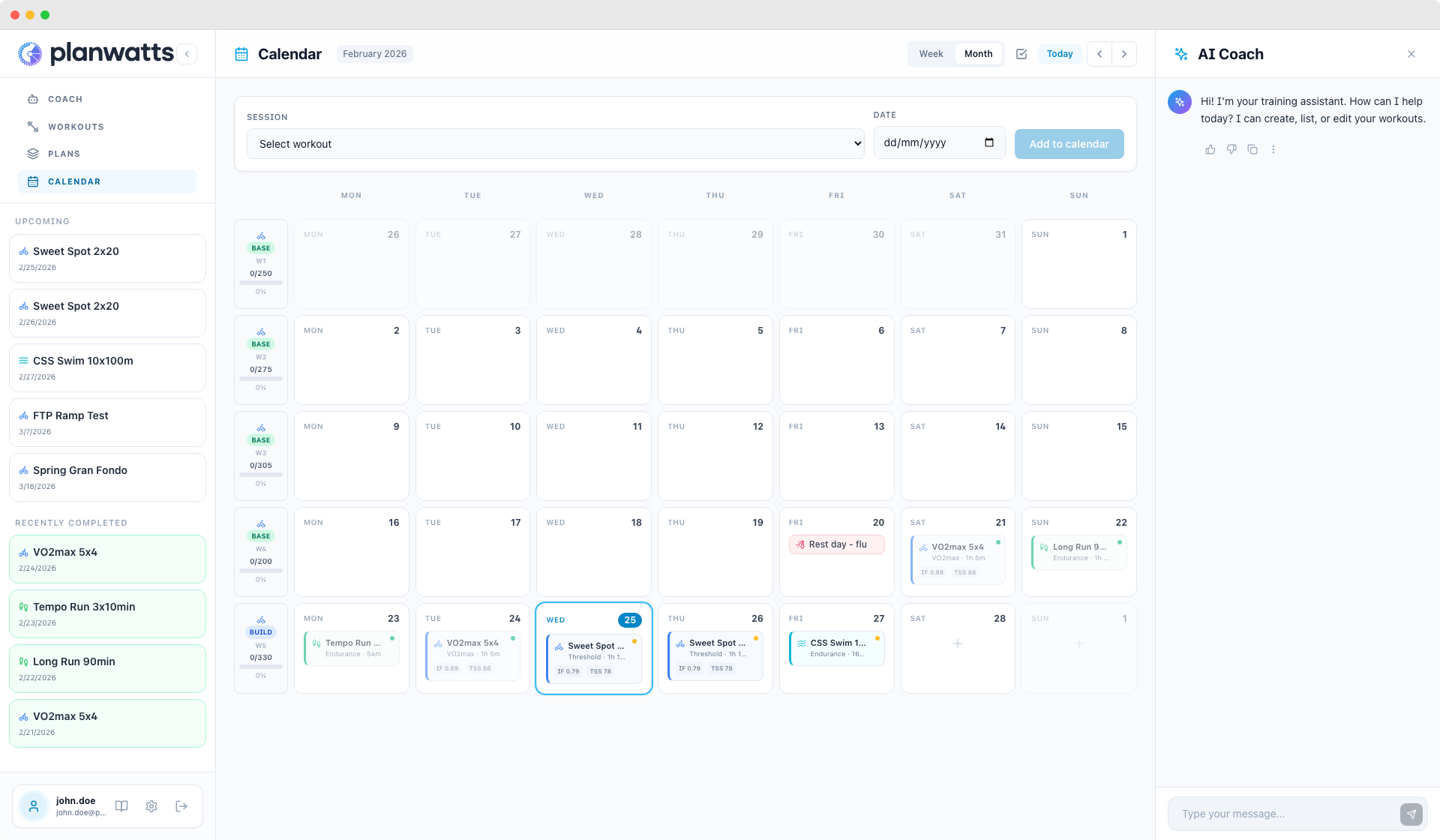
When a plan is applied, your calendar shows weekly targets in the left column:
- Phase badge — colored label (green for Base, blue for Build, orange for Peak, purple for Recovery)
- Week number — W1, W2, W3... within your plan
- TSS target vs actual — e.g., "185/305" with a progress bar
- Completion percentage — how close you are to your weekly goal
As you complete workouts during the week, the progress bar fills up in real time.
What This Means in Practice
You always know:
- What training phase you're in
- How much load you've accumulated this week vs your target
- Whether you're on track, under-training, or overdoing it
4. Plan <> Calendar Propagation
Plans aren't static. When you edit a plan, your calendar updates:
- Change a workout in a plan entry -> the calendar schedule updates and re-syncs to Intervals.icu
- Remove an entry -> the calendar schedule is deleted and removed from Intervals.icu
- Edit workout content (name, steps) -> changes push to all connected platforms
This means you can iterate on your plan mid-season — swap a workout, adjust a week — and everything stays in sync.
See also
- Plan Workouts — generating workouts with AI, picking from your library, and exporting without Intervals.icu
- Plan Sync with Intervals.icu — importing ATPs, multi-sport plans, and two-way sync