Deploying Plans to Your Team
This guide walks you through the full workflow of creating a training plan and deploying it to your athletes.
1. Create a Plan
Start by building a training plan using any of PlanWatts' tools:
- AI Coach — describe what you want ("4-week base building plan for juniors, 4 days/week") and the AI will generate the full plan with phases, workouts, and progression
- Plan Builder — manually create phases, add workouts, set weekly targets
- Duplicate — copy an existing plan and modify it
The plan doesn't need to be marked as a "team plan" upfront. Any plan you own can be deployed to your team.
2. Open the Deploy Modal
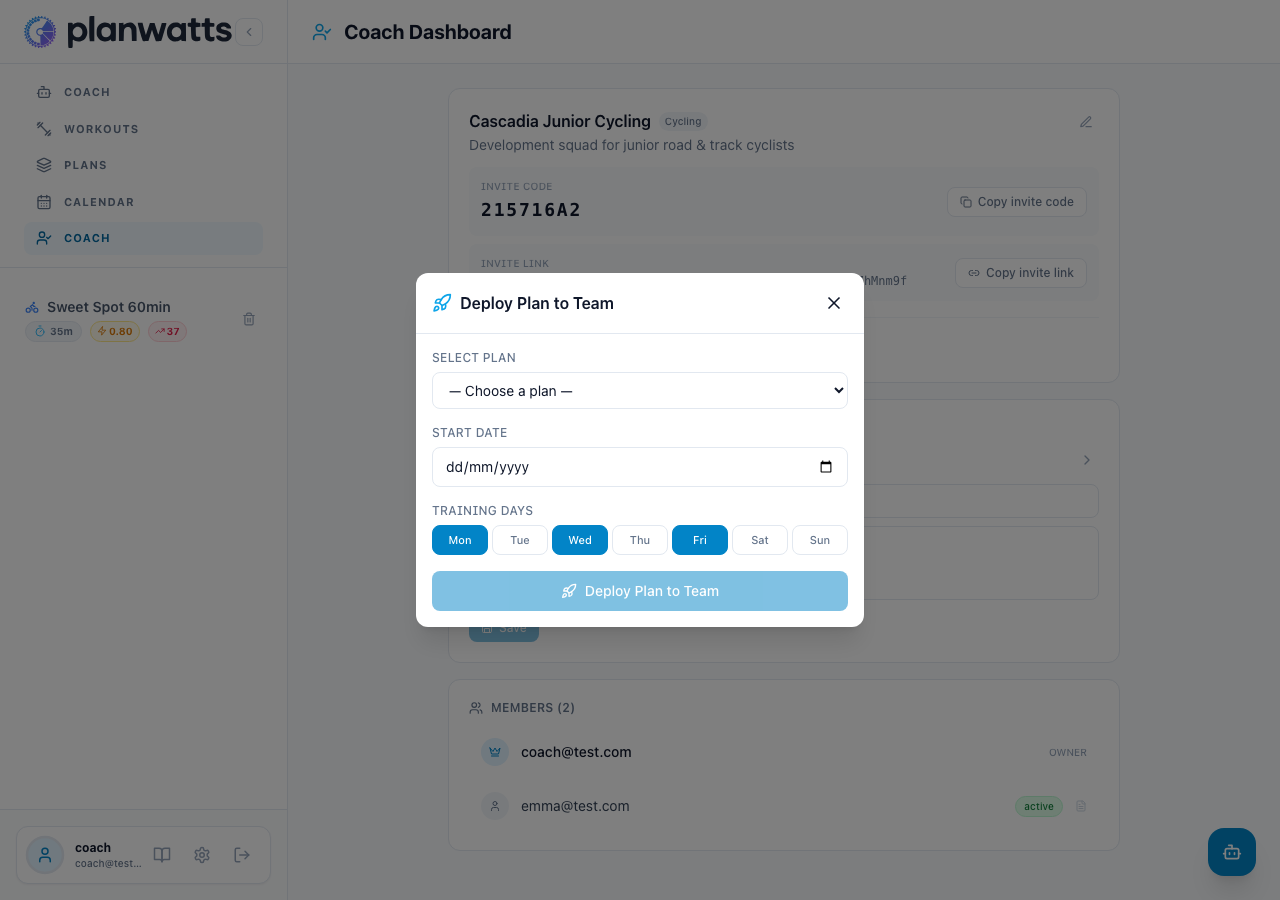
Go to the Coach Dashboard and click the "Deploy Plan to Team" button. This opens the deploy modal.
3. Configure the Deployment
In the deploy modal, set three things:
- Plan — select which plan to deploy from the dropdown (shows all your plans)
- Start date — the Monday when the plan begins on athletes' calendars
- Training days — which days of the week athletes will train (e.g., Mon, Wed, Fri)
Tip: The start date should be a future Monday. If you set a past date, only future weeks will be scheduled.
4. What Happens When You Deploy
When you click Deploy, PlanWatts:
- Clones the plan for each active athlete on your team — each athlete gets their own copy
- Creates calendar entries — workouts appear on each athlete's calendar on the training days you selected
- Marks everything with a Coach badge — so athletes know which workouts came from you
Athletes who already have a copy of this plan are automatically skipped (no duplicates).
The deploy processes athletes in parallel (up to 5 at a time), so even large teams deploy quickly.
5. After Deployment
Once deployed, you'll see a summary showing how many athletes received the plan and if any were skipped.
Your athletes will immediately see:
- Workouts on their calendar with the Coach badge
- The plan in their Plans list, also marked with the Coach badge
6. Updating the Plan (Propagation)
If you modify the master plan after deploying, you can propagate the changes to all athlete copies:
- Make your changes to the master plan (edit workouts, add/remove entries)
- Go to the Coach Dashboard
- Click Propagate on the deployed plan
- Confirm — PlanWatts updates all athlete copies and refreshes their calendars
Important: If you've made individual adjustments to a specific athlete's copy (overrides), those are preserved during propagation. Only non-overridden entries get updated.
7. Mid-Season Joins
When a new athlete joins your team after you've already deployed a plan, you can deploy it to them individually:
- Approve the new athlete's join request
- Use Deploy to Athlete with the option to start from the current week
- The athlete gets only the remaining weeks of the plan, not the ones that already passed
8. Assigning Individual Workouts
Beyond deploying whole plans, you can drop individual workouts straight onto an athlete's calendar — useful for one-off sessions, mid-week adjustments, or filling a gap.
From the Coach Dashboard, click an athlete to open their detail view. On their calendar, click a day (or its +) to open the workout picker — the same modal you use on your own calendar, populated with your workout library.
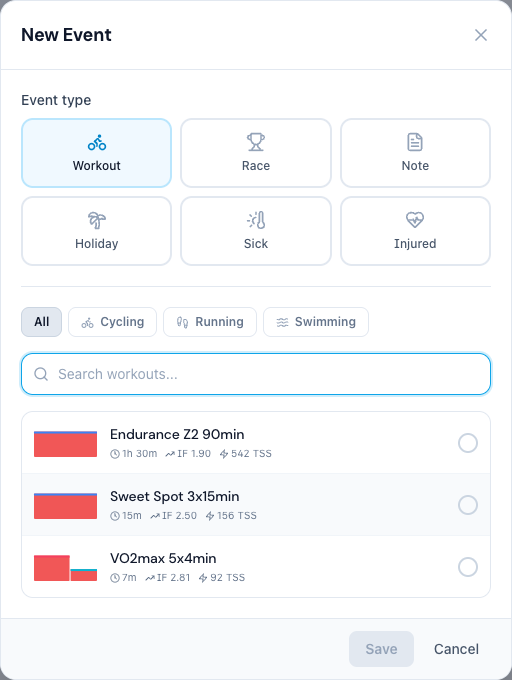
Pick a workout and save. PlanWatts then:
- Copies the workout into the athlete's library — so it's theirs to keep, edit, or reuse
- Schedules it on the day you picked, marked with a Coach badge
- Syncs it to the athlete's connected platforms (Intervals.icu, Garmin, etc.) — exactly as if they'd scheduled it themselves
Once a workout is on the calendar you can:
- Move it — drag the session to a different day
- Edit it — open the session and choose Edit workout to adjust the intervals; changes affect only this athlete's copy, never your master
- Delete it — remove the session from their calendar (the workout stays in their library)
Note: You can only move, edit, or delete sessions you assigned (or that came from a plan you deployed). Workouts the athlete created for themselves are left untouched.
See Also
- Team Setup — Creating your team and inviting athletes
- Coach Tier Overview — How the Coach Tier works at a high level
- For Athletes — What your athletes see on their end