Coach Tier — For Athletes
This page is for you if your coach uses PlanWatts to manage your training. Here's what to expect and how everything works from your side.
1. Joining a Team
Your coach will give you either an invite code or a link. Go to Settings and you'll find the "Join a Team" section. Paste the code and hit Join.
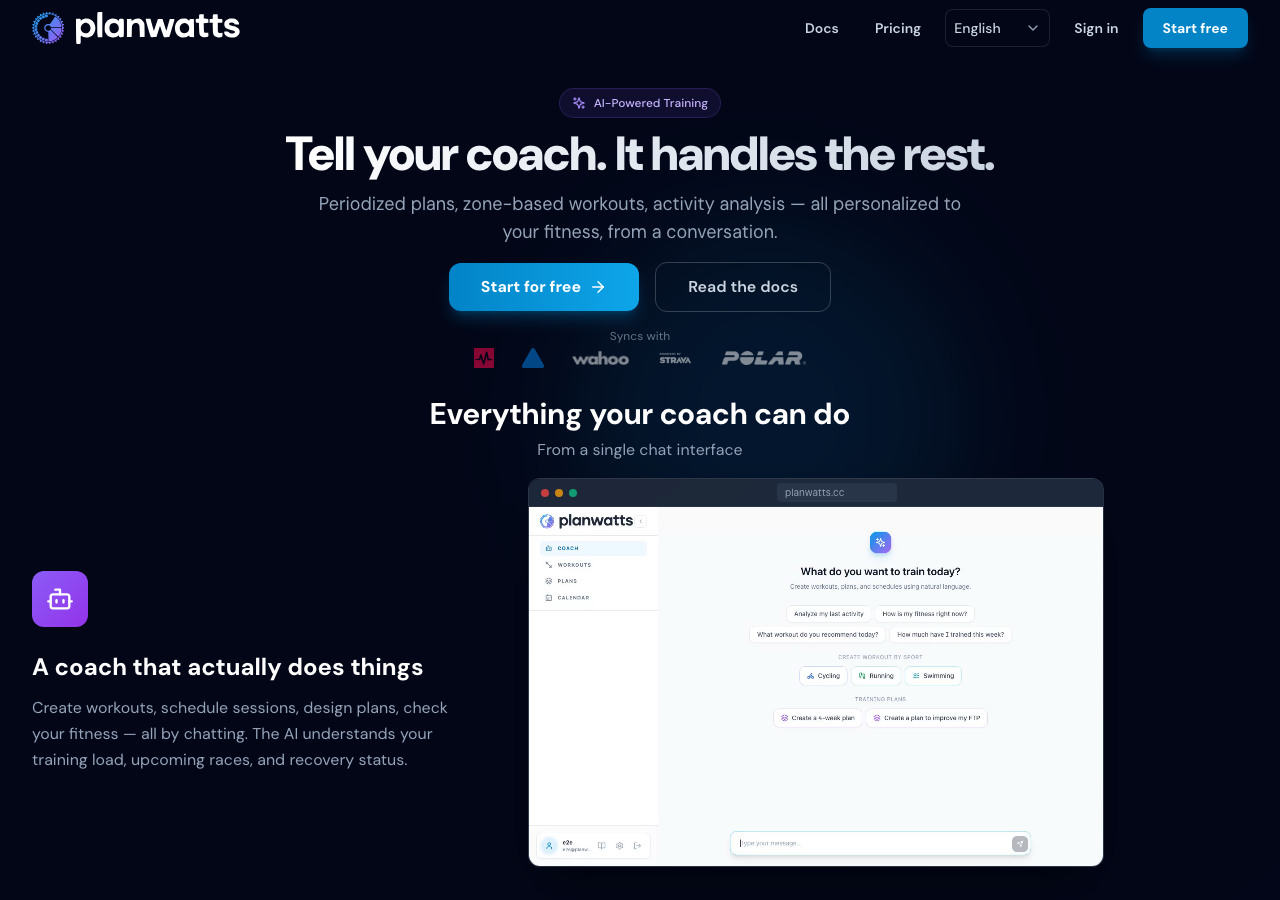
If your coach sent you a direct link, just click it — it'll take you straight to the join flow.
Important: Joining a team is free. Your coach handles the billing. You don't need a paid PlanWatts account to receive coaching.
2. Your Team in Settings
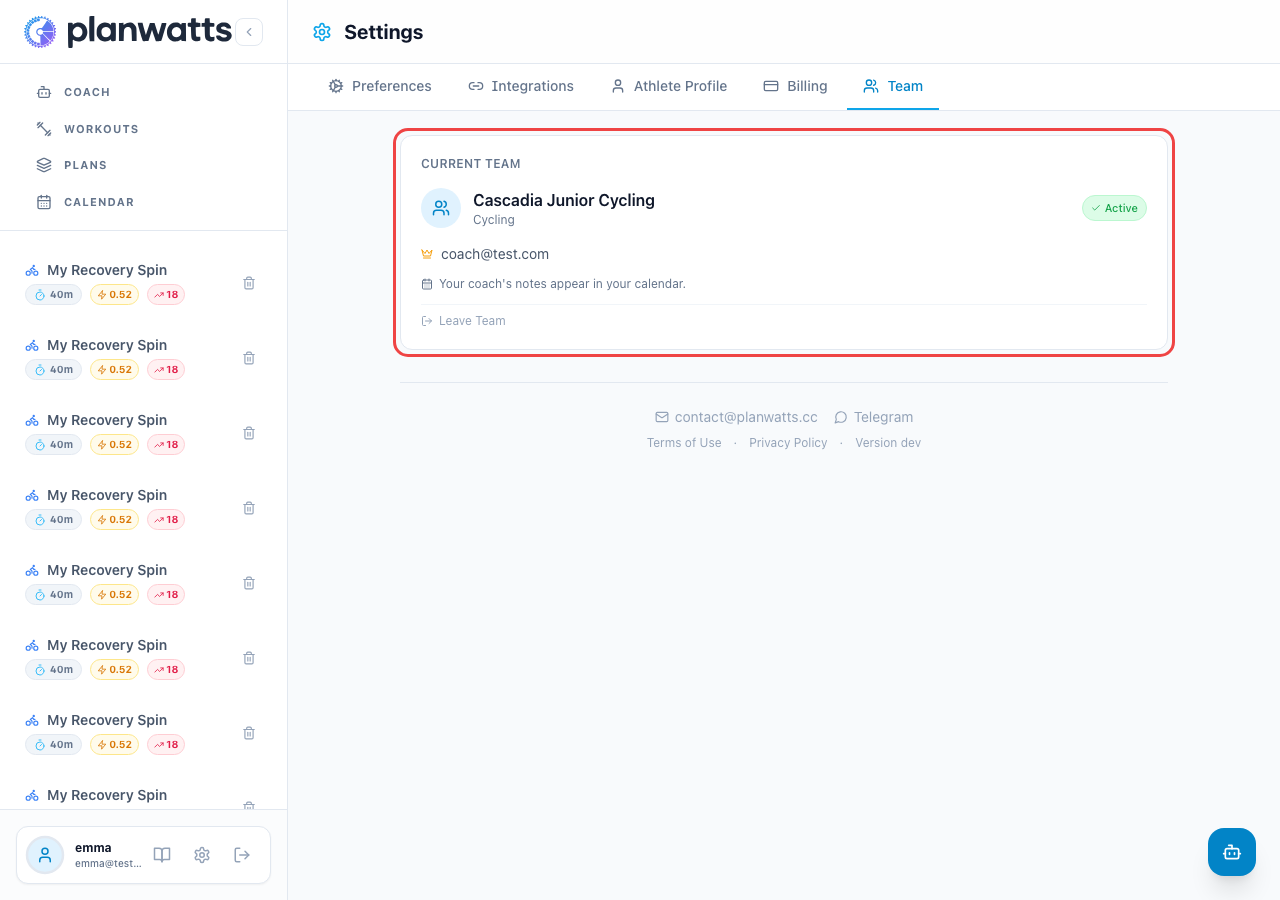
Once your coach approves your request, you'll see your team listed in Settings. This shows your coach's name and the team name. From here you can also leave the team if needed.
3. Coach's Notes in Your Calendar
Your coach can write two types of notes that appear directly in your calendar:
- Weekly notes — team-wide notes for the current training week. These appear as a collapsible amber banner at the top of each week, in both month and week view. Click to expand and read the full note.
- Personal notes — notes written just for you. These appear as a blue info bar above your calendar grid. They're private between you and your coach.
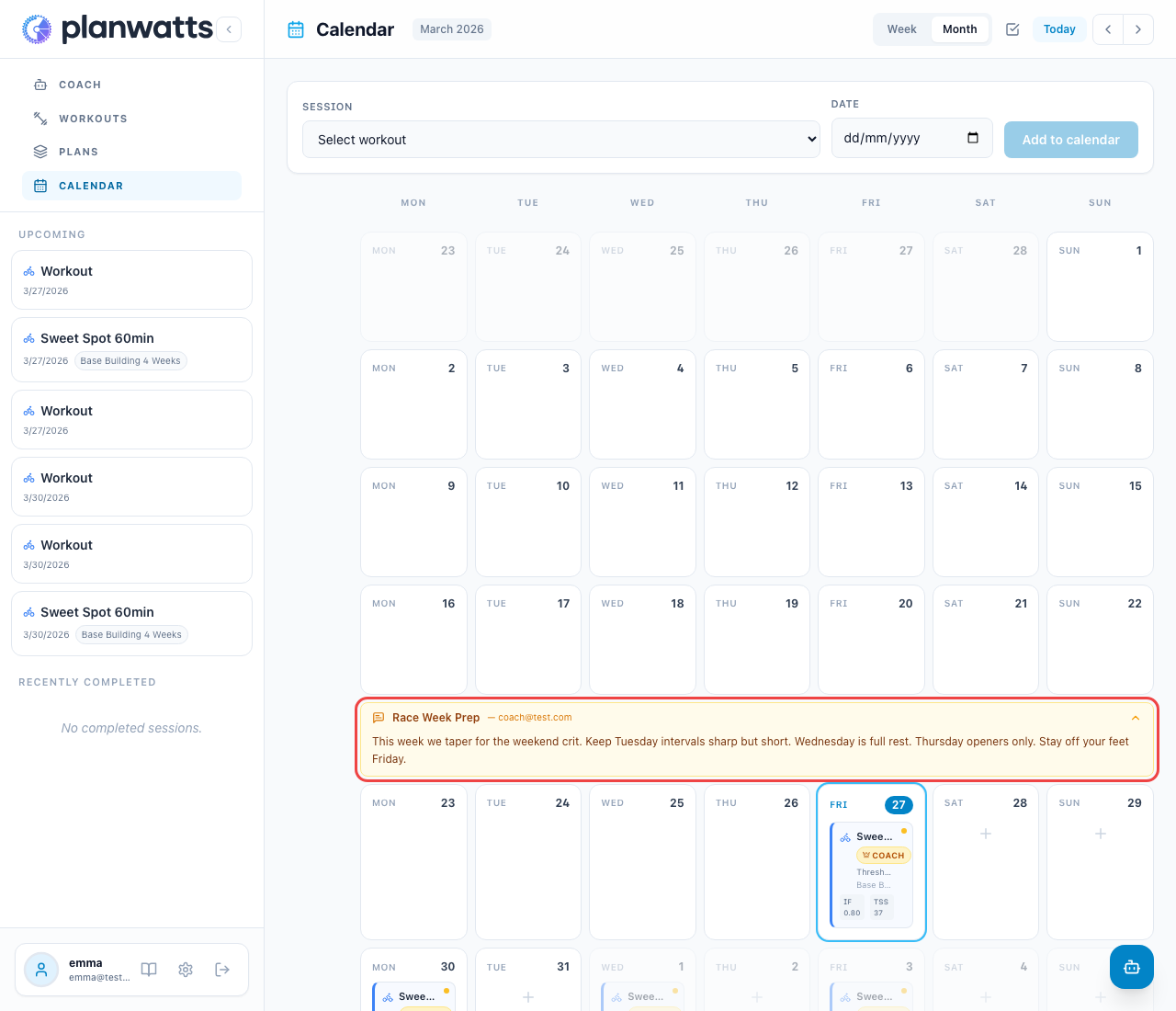
Tip: Check your calendar regularly, especially before race weeks or when starting a new training block. Your coach may leave important instructions there.
4. Coach Workouts on Your Calendar
Workouts from your coach appear directly on your calendar — whether they came from a deployed plan or were added individually for a specific day. Each one carries a Coach badge, so you can always tell at a glance which sessions came from your coach versus ones you created yourself.
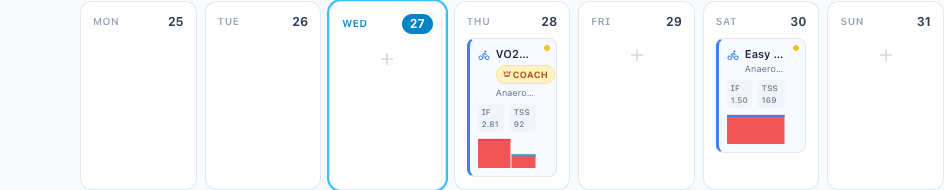
You can open any coach workout to see the full details — intervals, description, targets — just like your own. These workouts are yours: they're copied into your library when assigned, so you can sync them to your devices, and if you want a standalone version to reuse, you can copy it to your library like any other workout.
4b. Finding Coach Workouts in Your Library
To keep your library tidy, coach-assigned workouts are hidden by default in your Workouts list — the same way plan workouts are. Open the Filters and use the Coach dropdown to show them:
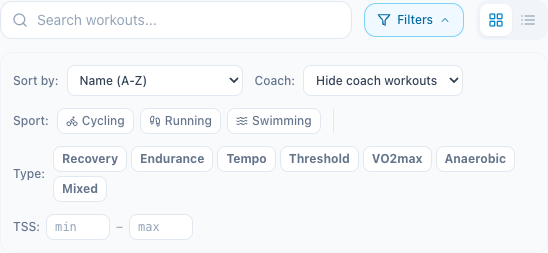
- Hide coach workouts (default) — only your own standalone workouts
- Coach only — just the ones your coach assigned
- All — everything together
5. Coach Plans in Your Plan List
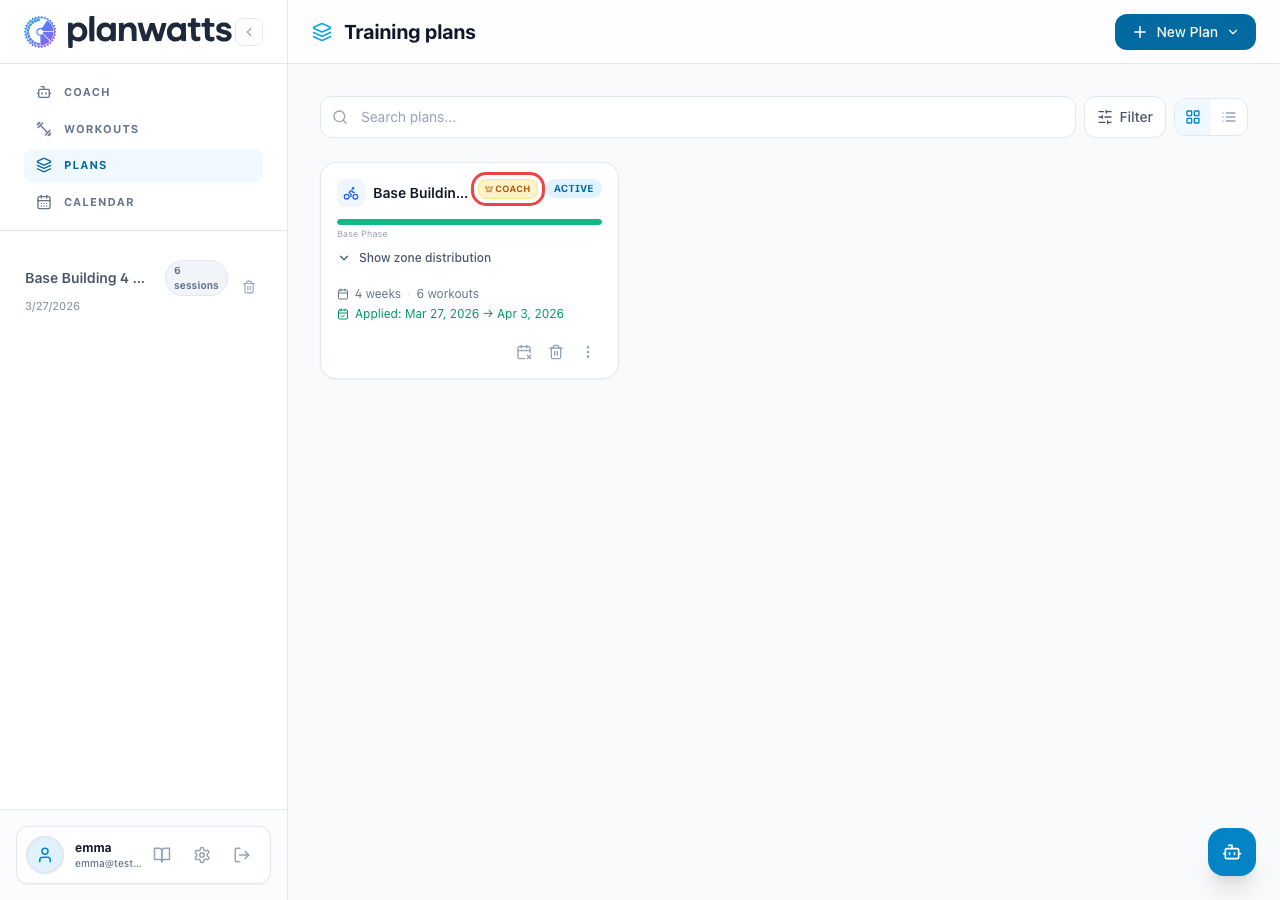
Coach-deployed plans also show up in your Training Plans list, clearly marked with the Coach badge. You can browse the full plan structure, see upcoming workouts, and understand the bigger picture of your training block.
6. Leaving a Team
If you need to leave a team, you can do so from the team section in Settings. This removes the coach's access to your data and stops future plan deployments.
Important: Leaving a team doesn't delete workouts already on your calendar. Those stay in place — you can keep or remove them manually.
See Also
- Coach Tier Overview — How the Coach Tier works at a high level
- Team Setup — The coach's perspective (useful if you're curious about what your coach sees)