Coach Features
1. Training Advice and Recommendations
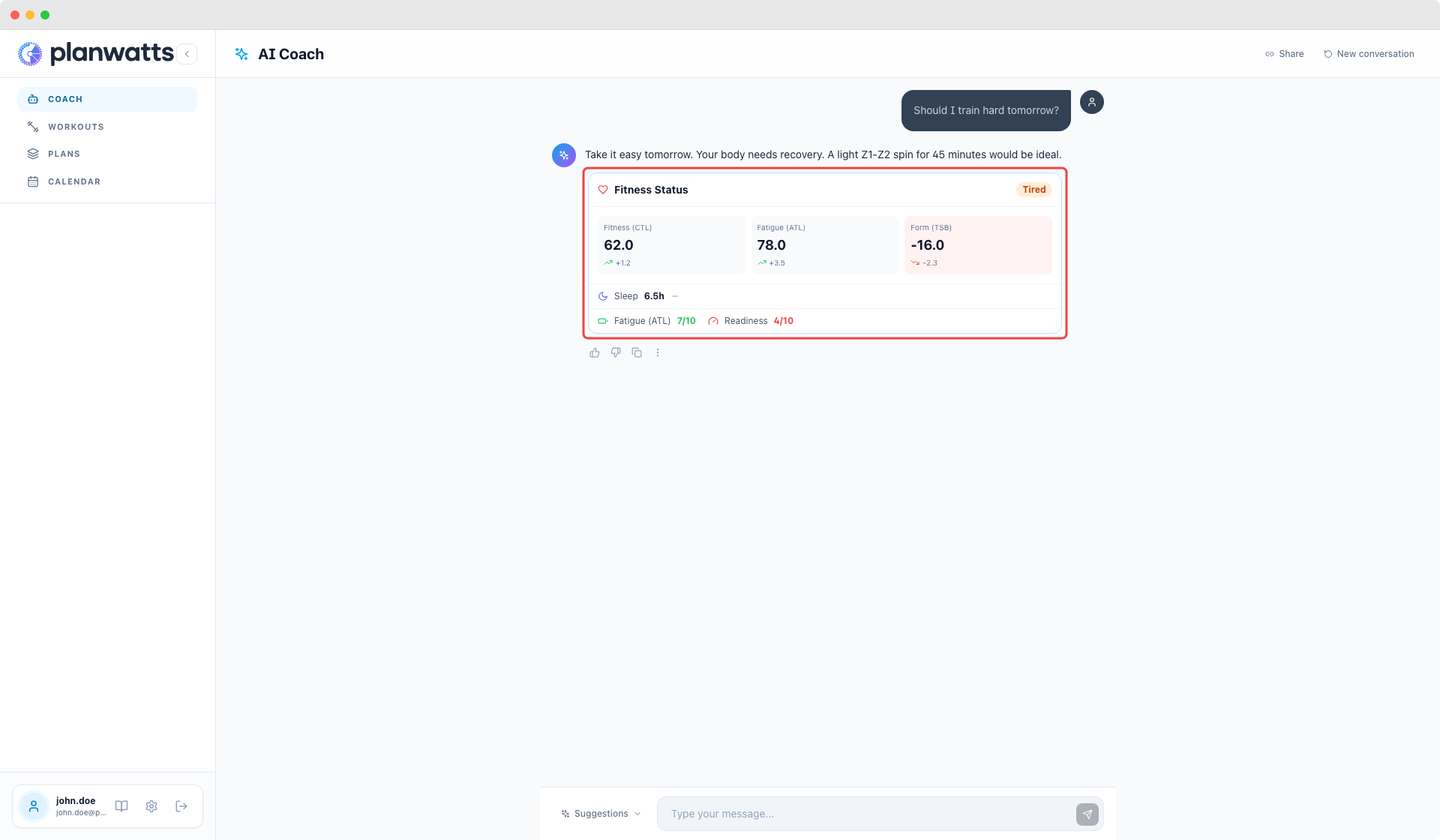
The Coach isn't just a workout generator — it's actually a coach. Ask it questions about your training and it gives personalized answers based on your real data.
"Am I training enough for my upcoming event?"
"My CTL has been dropping — should I be worried?"
"I have 3 days until my race, what should I do?"
"I want to improve my FTP — what kind of sessions should I focus on?"
The Coach sees your:
- Athlete profile — FTP, threshold heart rate, training zones, sport preferences
- Recent activities — what you've been doing over the past weeks
- Wellness data — CTL (fitness), ATL (fatigue), TSB (form)
- Your workout library — workouts you've created or saved
- Your training plans — phases, targets, and progress
- Training science research — it references periodization studies and established methodology when relevant
It also remembers things about you across conversations — your goals, your preferences, your injury history if you've mentioned it. You don't have to repeat yourself every time.
2. Conversation History
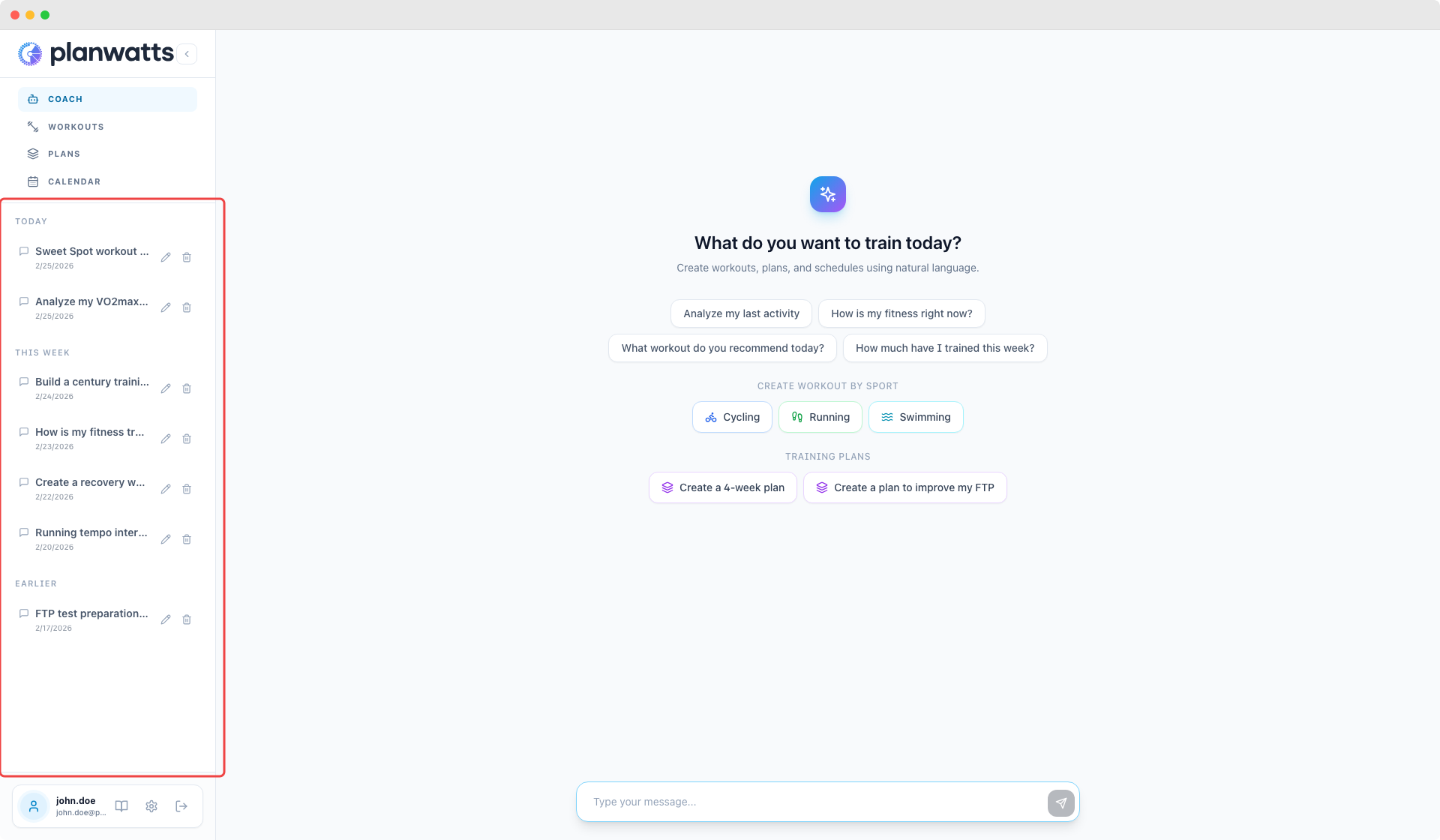
Every conversation is saved automatically. The sidebar on the left shows your conversation history:
- Search — find past conversations by keyword
- Continue — click any conversation to pick up where you left off
- Rename — give conversations meaningful names (the Coach auto-generates titles, but you can change them)
- Delete — remove conversations you don't need
- Share — generate a public link so others can read the conversation (read-only)
The Coach summarizes each conversation so you can quickly scan through your history.
3. Interactive Responses
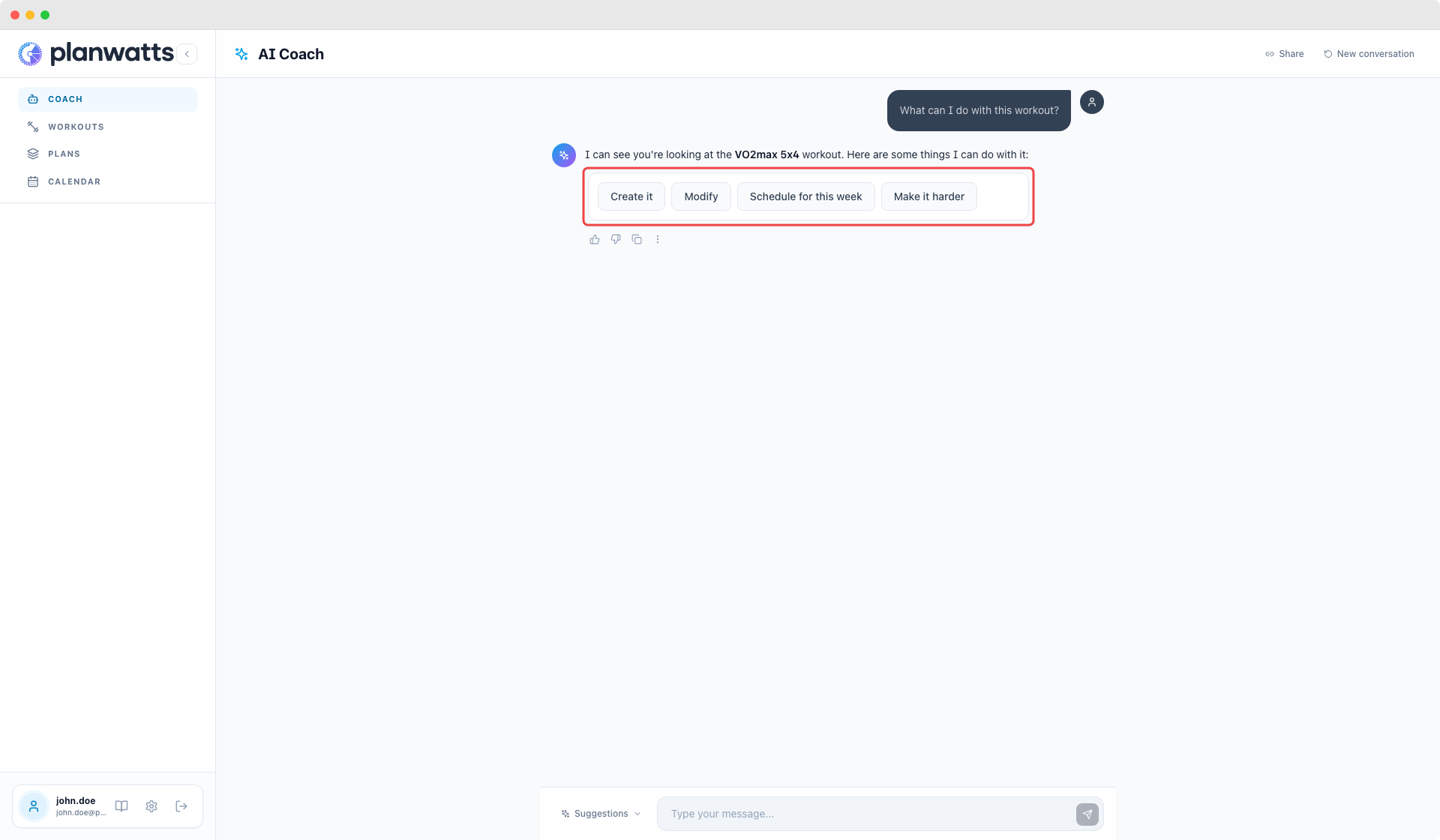
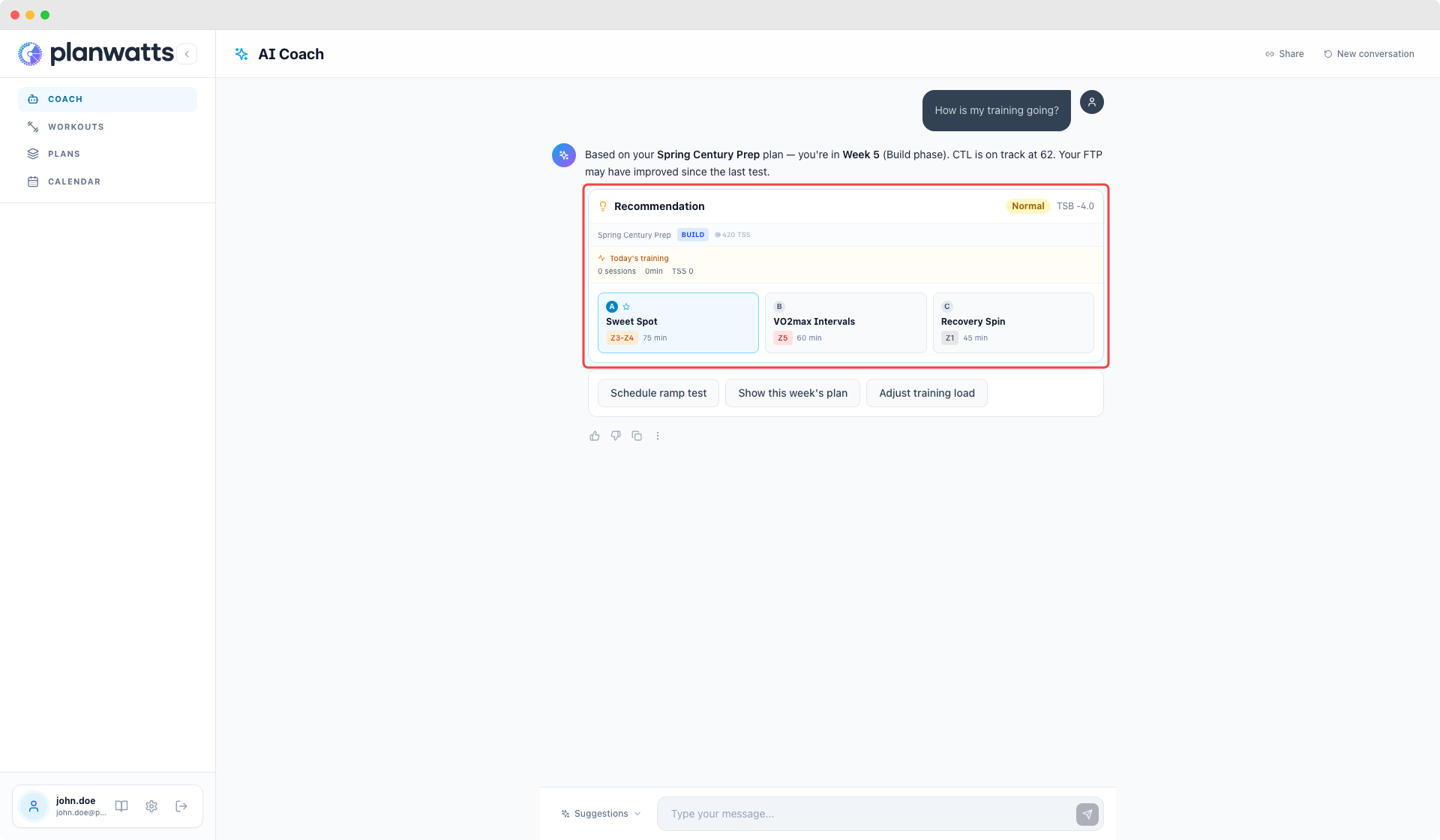
The Coach doesn't just give you text walls. Responses often include interactive elements:
- Action buttons — "Create it", "Schedule it", "Modify", "Make it harder"
- Links — click to open a created workout in the editor, or jump to an activity on the calendar
- Workout preview cards — structured view of the workout with interval details right in the chat
These buttons save you time. Instead of typing "yes, create that workout", just click the button.
4. Context Awareness
One thing that makes the Coach genuinely useful: it knows what you're looking at. The Coach reads context from the page you're on:
- Viewing a workout → "Schedule this" refers to that workout
- Viewing an activity → "Analyze this" refers to that activity
- In the plan editor → "Generate workouts for this week" uses the plan you're editing
- On the calendar → the Coach can see what's on your current week
You don't need to specify "workout ID #47" — the Coach already knows.
See also
- AI Coach — Overview, basics, home screen, and tips
- Coach Actions — Creating workouts, scheduling, activity analysis, and training plans