AI Coach
The AI Coach is the main screen in PlanWatts — it's the first thing you see when you open the app. I built it to be the one place where you can do almost anything: create workouts, schedule them, analyze activities, build training plans, or just ask a training question. This guide covers everything it can do and how to use it well.
Important — You're the athlete, not the AI. The Coach is a tool that helps you plan and analyze your training, but it doesn't know how your body feels today. Always use your own judgment when deciding whether a workout is appropriate. If the Coach suggests a hard session and you're exhausted, injured, or just not feeling it — skip it, swap it, or scale it down. No algorithm replaces the athlete's own awareness.
Chat or buttons — your choice. Everything you can do in a conversation with the Coach (create workouts, schedule them, build plans, analyze activities) can also be done through the UI using AI-assisted buttons on each page.
The Coach is an AI agent still in active development. Complex conversations with many turns — especially ones involving changes to your plans and calendar — may not always work perfectly.
Our recommendation: use short, focused conversations when you want the Coach to do things (create, schedule, modify). Save longer conversations for coaching, analysis, and training advice — that's where the conversational format really shines.
1. The Basics — Chat With Your Coach
The Coach is a conversational AI that understands training. You type in natural language, it responds. No menus, no forms — just describe what you need.
Some things you can say right now:
"Make me a 90-minute cycling workout with 3x8min over-unders at 105% FTP"
"Analyze my last ride"
"How should I structure my training this week? I'm feeling tired"
"Create a running plan to prepare for a half marathon in April"
"Schedule this workout for Saturday"
The Coach replies in whatever language you write in. It supports English, Spanish, German, French, Italian, and Portuguese.
2. The Home Screen
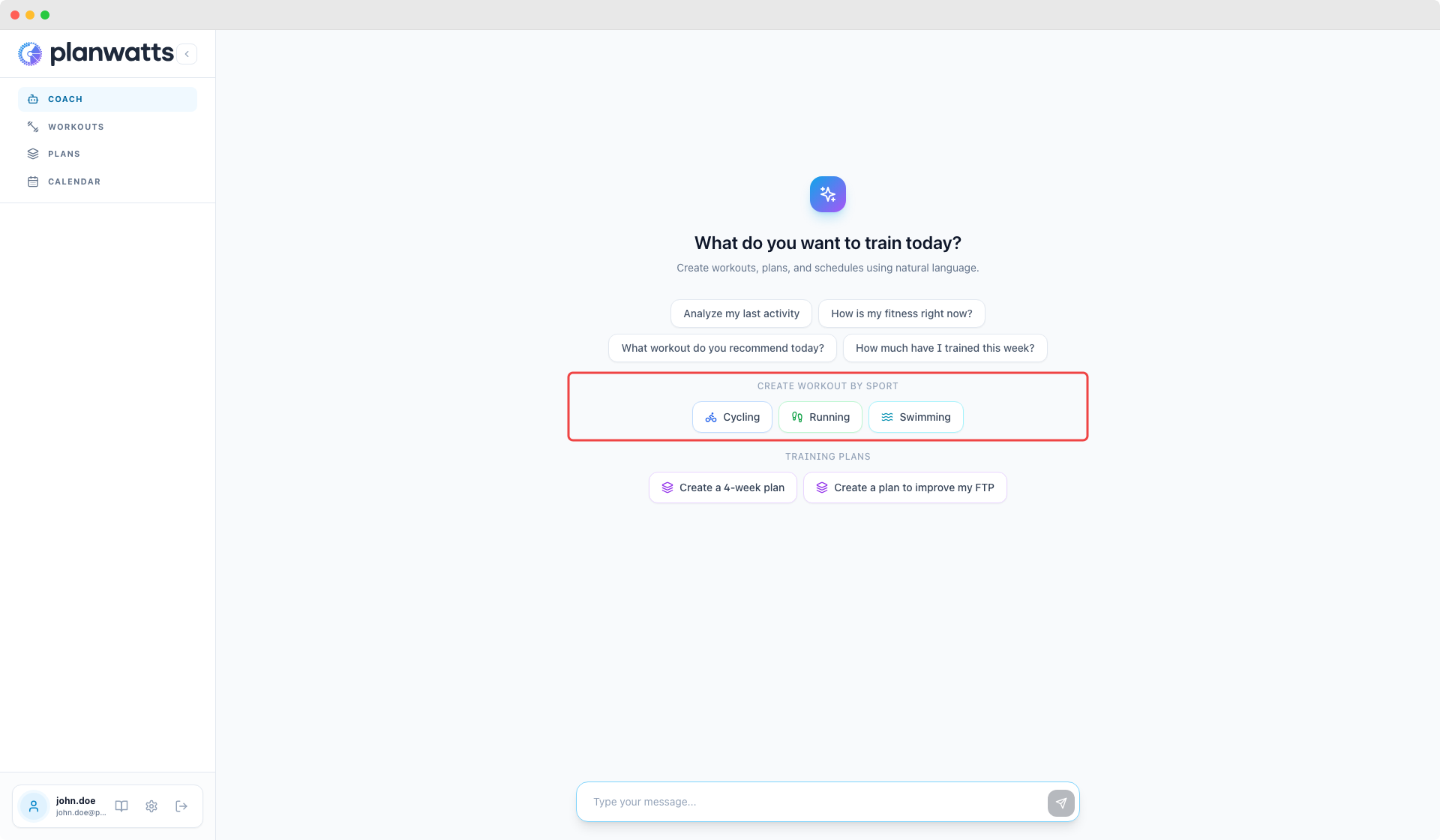
When you open the Coach without an active conversation, the home screen gives you quick-start options:
- Sport buttons — Cycling, Running, Swimming. Tap one and it automatically sends a message to start creating a workout for that sport. No typing needed.
- Suggestion chips — common tasks like "Analyze my last activity", "Create a workout", "Build a training plan". One tap to start.
These suggestions are context-aware. If you're on a page with a workout open, the suggestions adapt to that context.
3. Tips for Getting the Most Out of the Coach
Be specific when you can. "Make me a 90min cycling workout with 3x8min over-unders at 105% FTP" gives a much better result than "make me a hard workout". The more detail you provide, the closer the first response will be to what you want.
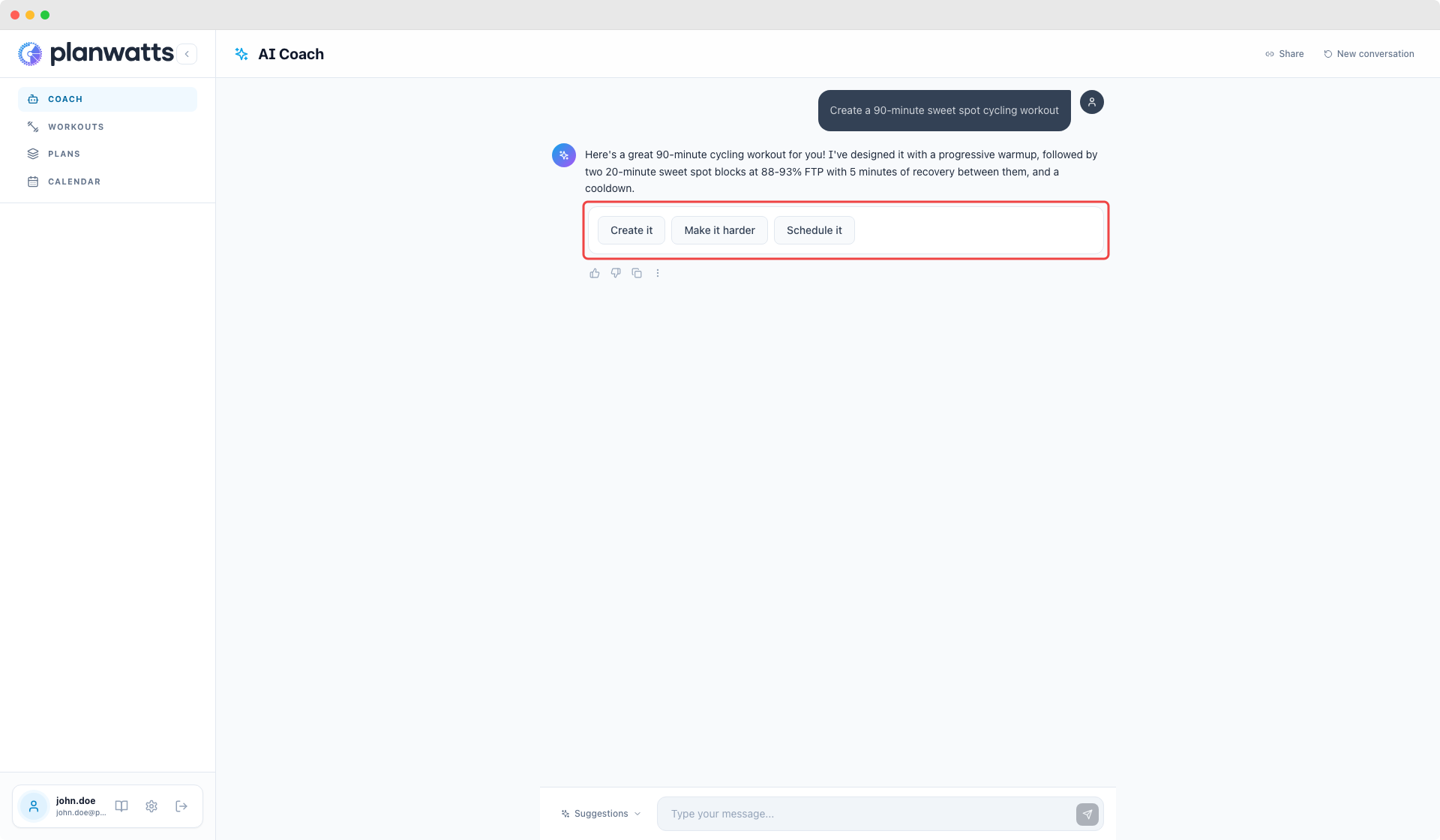
Iterate. The Coach remembers everything in the conversation. Say "make it harder", "add a longer warm-up", "change to running", "reduce the recovery to 2 minutes". You can refine as many times as you need.
Ask follow-ups. After the Coach creates a workout, you can ask "why did you choose those intervals?" or "what should I focus on during the sweet spot blocks?". It's a conversation, not a form.
Use it for advice, not just workouts. The Coach has access to your fitness data, your training history, and sports science research. Asking "should I train hard tomorrow?" actually gets a useful answer because it checks your fatigue and recent load.
Try different languages. Write in Spanish, get answers in Spanish. Same for German, French, Italian, and Portuguese. The Coach detects your language automatically.
Let it see your data. The Coach is more useful when it knows your FTP, your zones, your recent activities. Connect Intervals.icu or Strava so it has real numbers to work with. Without integrations it still works, but advice gets more generic.
See also
- Coach Actions — Creating workouts, scheduling, activity analysis, and training plans
- Coach Features — Training advice, conversation history, interactive responses, and context awareness