Export & Share
Workouts aren't useful if they stay trapped in a web app. PlanWatts gives you multiple ways to get workouts onto your devices and share them with others.
1. Export as FIT File
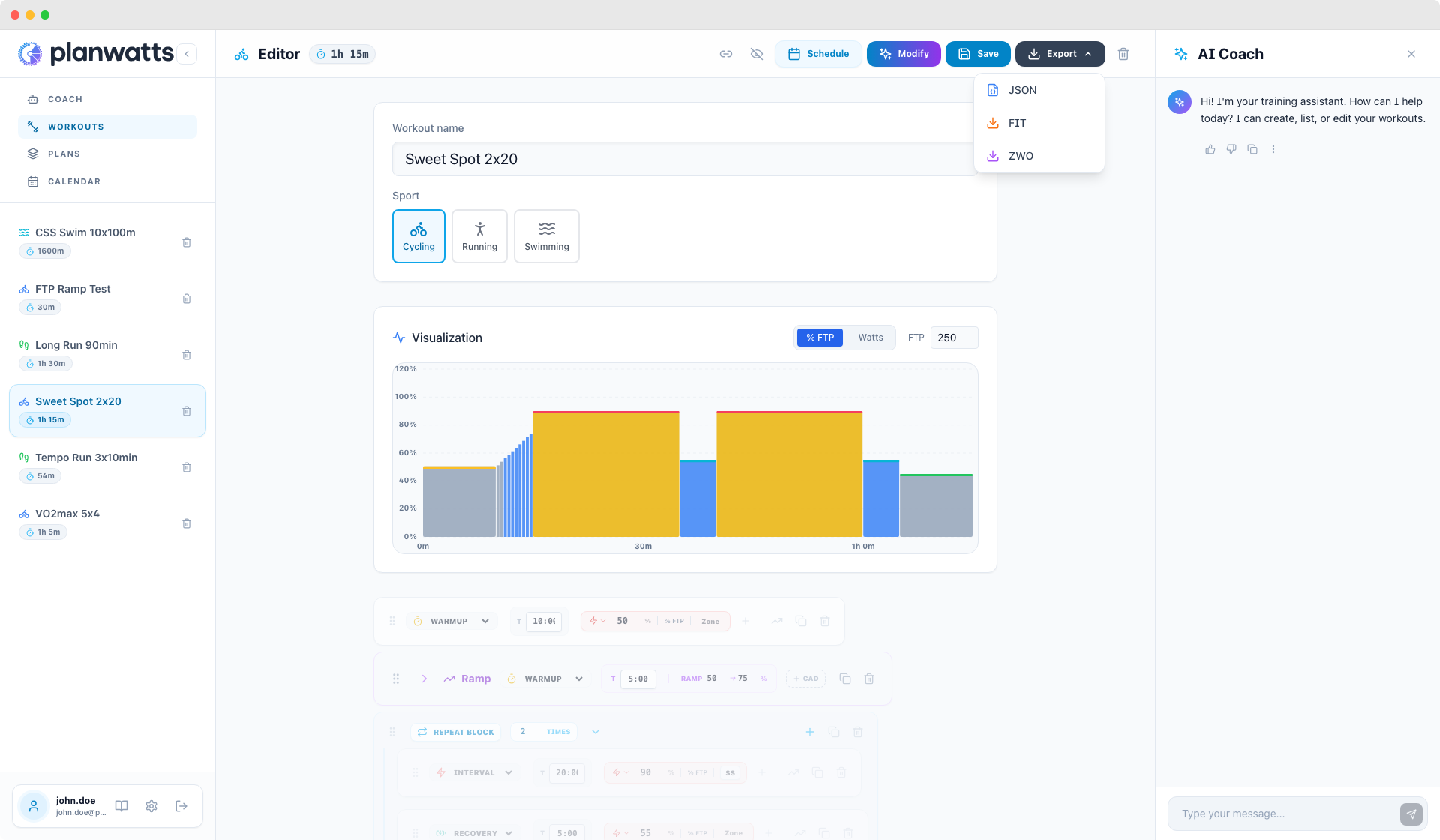
FIT is the universal workout format. Export any workout as a .fit file and load it onto:
- Garmin Edge / Forerunner / Fenix
- Wahoo ELEMNT / BOLT / ROAM
- Hammerhead Karoo
- Basically any modern bike computer or sports watch
The FIT file includes all your step targets, durations, and structure — your device will guide you through the workout with target alerts.
Export as ZWO File
ZWO is the Zwift workout format. Export as .zwo for indoor training on Zwift (cycling workouts only). Import it into Zwift and ride with on-screen power targets.
2. Share via Public Link
Every workout has a Share option that generates a public link. Anyone with the link can:
- View the full workout structure and chart
- Import it into their own PlanWatts library with one click
- Download it as FIT or ZWO
The links generate proper social previews — paste one in WhatsApp, a forum post, or a group chat and it shows the workout name and a visual preview. Great for sharing sessions with training partners or coaching groups.
3. Scheduling Workouts
Getting a workout onto your calendar is quick.
Quick Schedule Popover
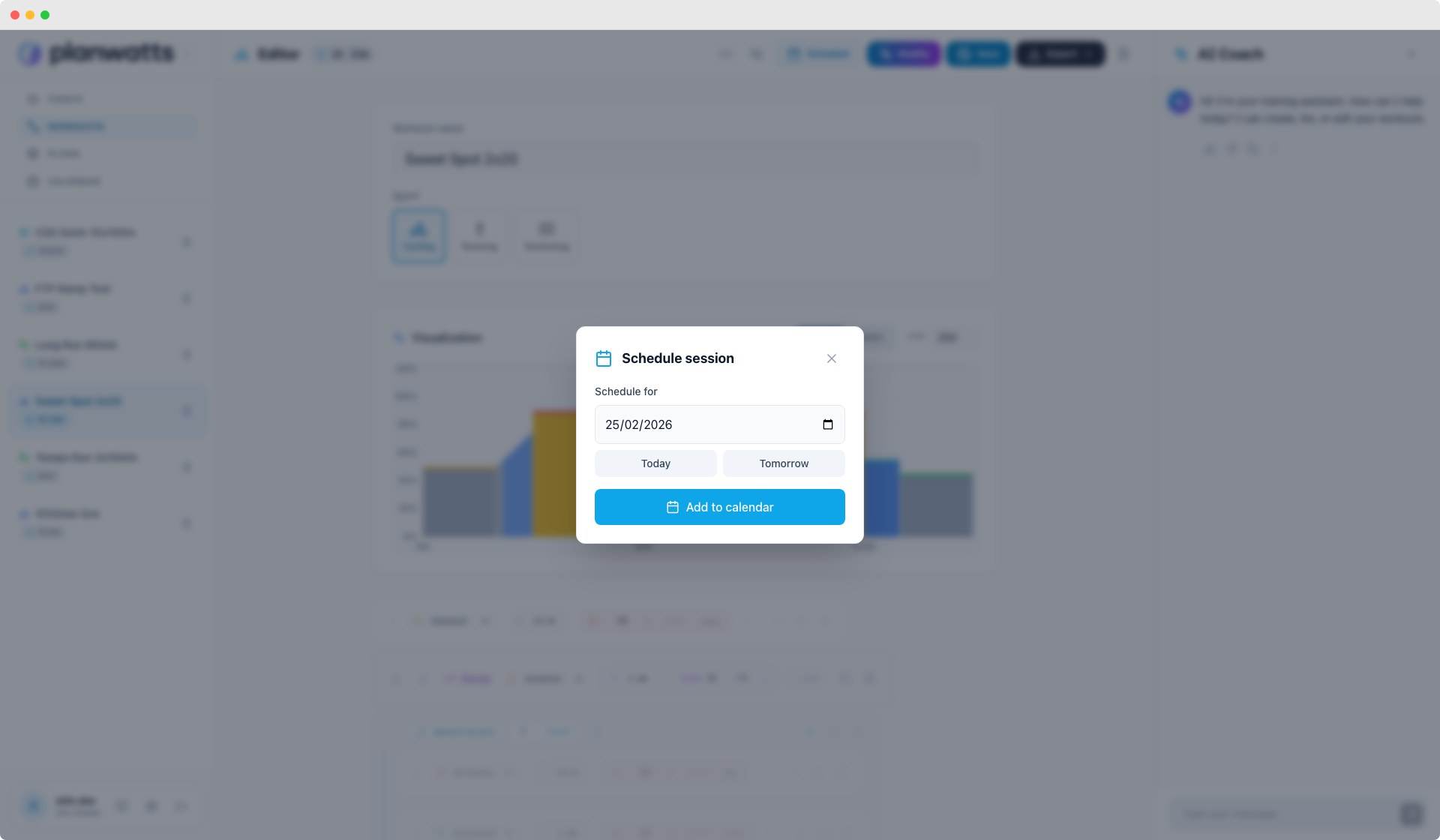
From any workout card in the library (or from inside the editor), click the schedule button. A popover gives you shortcuts:
- Today — schedule it for right now
- Tomorrow — next day
- Saturday — jumps to the nearest Saturday (because that's when most long sessions happen)
- Custom date — pick any date from a mini calendar
One click and the workout appears on your calendar. If you have Intervals.icu, Garmin, or Strava connected, it syncs to those platforms automatically.
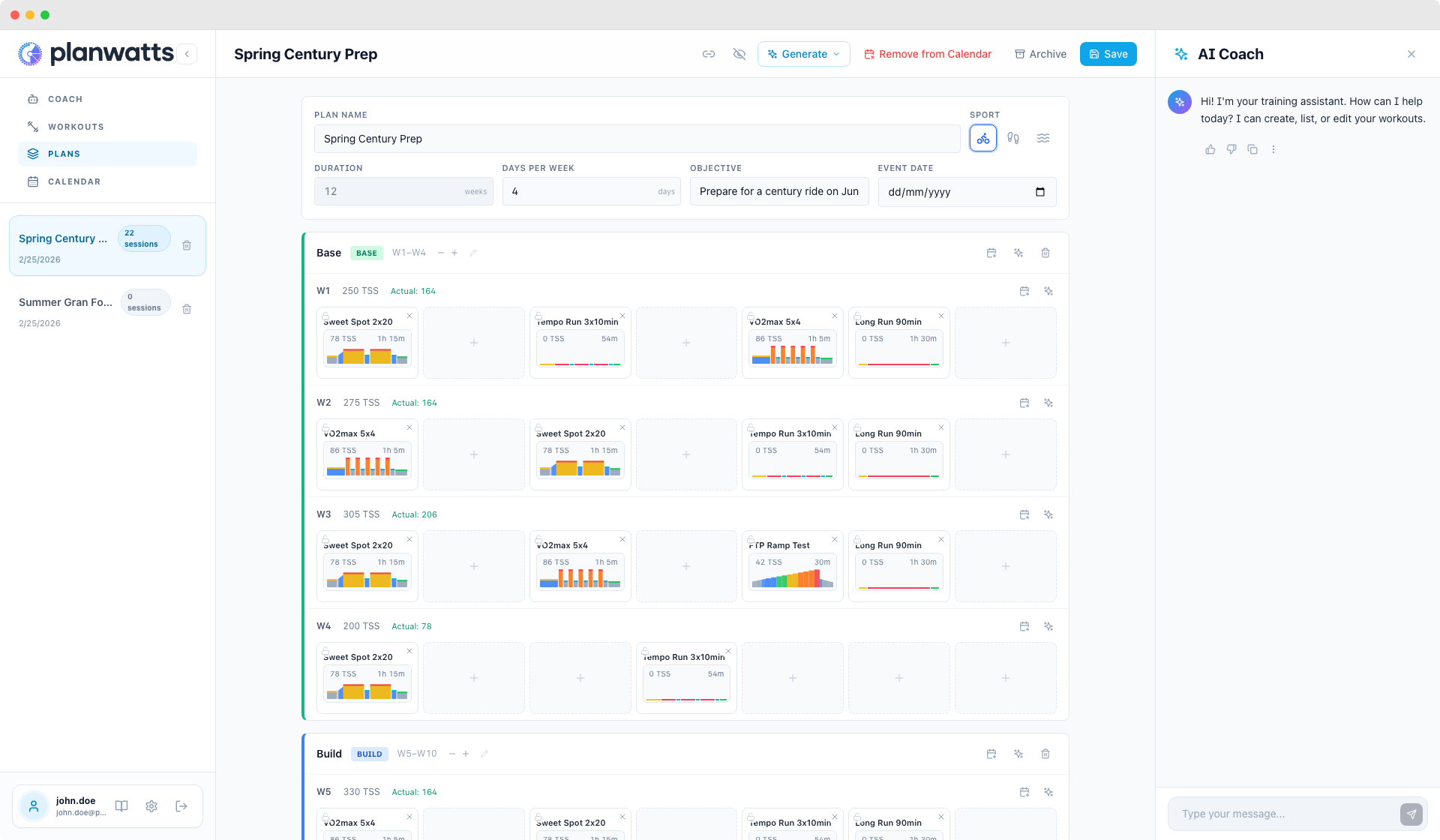
4. Workouts and Plans
Workouts can exist in two places: your library (standalone) and inside a training plan. Here's how they interact.
Library Workouts
These are your personal collection — workouts you've created, imported, or received via shared links. They're independent of any plan and always available.
Plan Workouts
When you assign a library workout to a plan (by dragging it into a plan cell or using the workout picker), PlanWatts clones it automatically. The plan gets its own copy, so editing the plan version doesn't affect your library original, and vice versa.
Copy to Library
Going the other direction: if a plan contains a workout you want to keep as a standalone, use Copy to library. This extracts a copy back to your library so you can reuse it in other plans or schedule it independently.
This means you can build up your library over time — the best workouts from each training plan become part of your permanent collection.